Audit Log
Path: /audit
A page for recording and viewing important system activities (who did what and when). Used for security audits, troubleshooting, and compliance (privacy and information security laws, etc.). If you cannot access it, request permission from your organization manager.
What you can see depends on your role, and the screen states this as well.
- Organization manager: records for the whole organization
- Team manager: records for their own team, plus their own
- Member: only their own records. The actor filter is not shown, and the type list contains only the types present in their own records.
Export results are likewise visible and downloadable only to the person who requested them.
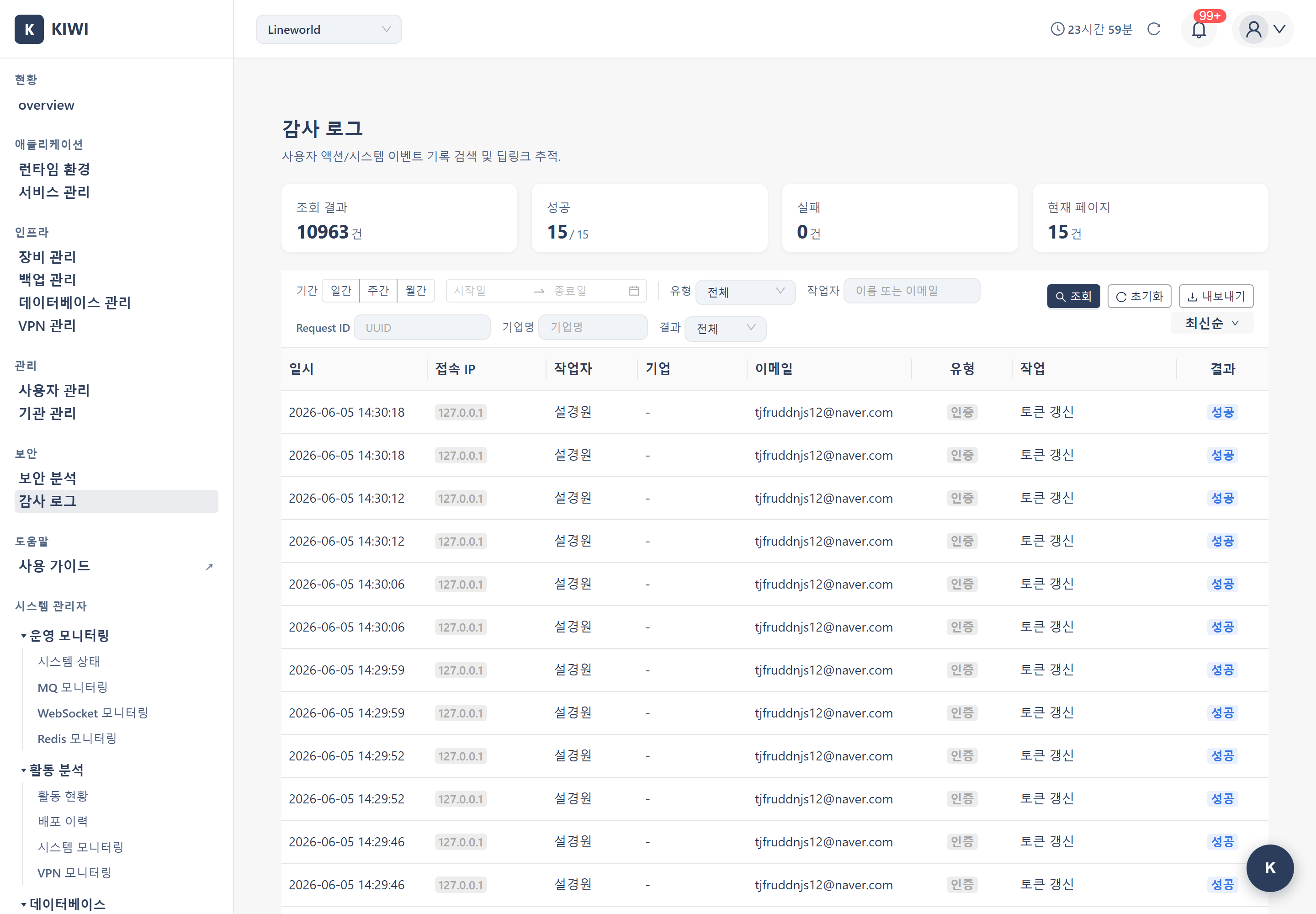
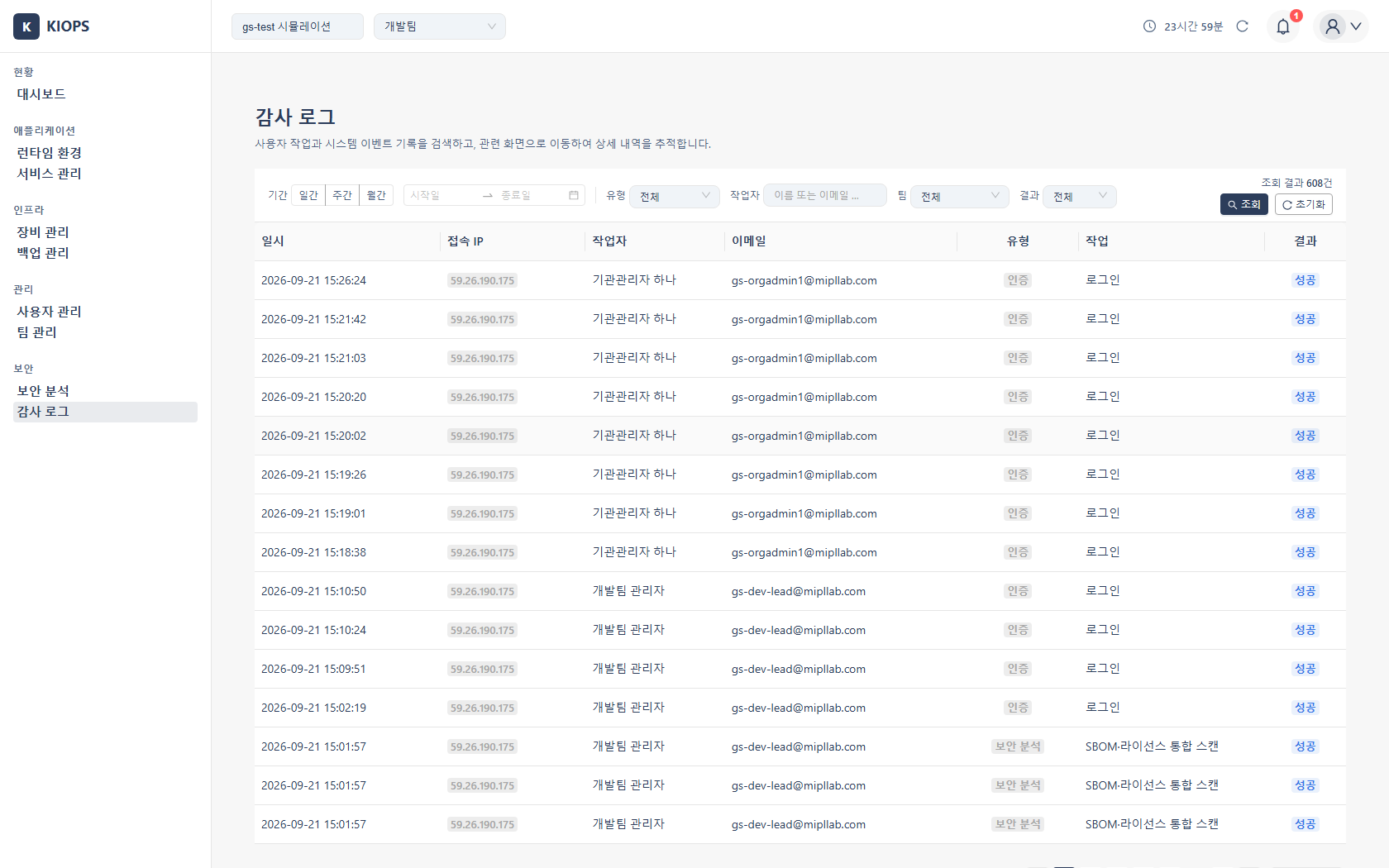
What you can do here
- View activity: Recent logs appear in reverse chronological order; browse via scroll and pagination.
- Filter and search: Query by combining period, type, result, user, request_id, and more.
- Export: Save the filtered range to a file.
Key elements
Log types (16 categories)
device · infra · service · auth · backup · database · user · organization · audit · vpn · secret · domain · monitoring · system · webhook · db_backup
The types shown in the filter dropdown depend on your permissions (e.g.
organizationappears only to users with the relevant permission).
Log list columns (8)
Date/Time · Source IP · Performer · Company · Email · Type (ActionType) · Operation (create/delete/update, etc.) · Result. For the meaning of result values, see the Status Reference. There is no separate "Target" column; the target resource is shown in the detail view.
Clicking a row opens a detail panel with the Request IP, request_id (distributed tracing / log correlation), detailed request parameters, before/after data, and the error message (for failed operations).
Filter panel
- Period: start–end dates (Today, Last 7 days, This month presets)
- Type (ActionType): multiple selection; visibility varies by permission
- Result: filter by the result states in the Status Reference
- User / Company (PlatformAdmin only)
- request_id search: exact match on a specific request ID
- Sorting: by created_at only, newest-first or oldest-first
- Search debouncing: queries after a short pause to reduce unnecessary calls
Arriving via a deep link from another page's notification (pipeline, Discord, etc.) shows the relevant log pre-selected or pre-filtered.
Export formats (2)
- xlsx (Excel): for report-style files needing multiple sheets or formatting
- CSV: lightweight tabular text, for importing into other tools
File name pattern:
Audit_Log_YYYYMMDD.xlsx(or.csv). Files may contain personal information such as emails and IPs, so handle them carefully and securely delete them when no longer needed.
Key action codes
- Authentication:
auth:login,auth:logout - Device:
device:create,device:update,device:delete - Infrastructure:
infra:create,infra:update,infra:delete - Service:
service:build,service:deploy,service:rollback - Backup:
backup:create,backup:restore,backup:delete
Retention policy
KIOPS does not delete audit logs automatically. The retention scheduler that used to remove aged records has been removed, so entries remain until they are deleted deliberately. For logs with statutory retention periods, work with your legal or information security team on a separate archival policy. Use export when you need long-term retention or need to hand records to someone outside.
Audit logs are automatically recorded by the system for integrity and cannot be modified or deleted by users.
How to
- Filter by period: In the filter panel's Period section, select start and end dates → applied automatically.
- Filter by type: Select multiple types in the Type dropdown → click outside to apply.
- Filter by result: Select a state in the Result dropdown.
- View details: Click a log row → review Request IP, parameters, before/after, and error in the right panel.
- Export: Apply filters → click Export at the top → choose a format (xlsx/CSV) → download.
Related tasks
- Related: Audit Log Scenario