Device Management
Path: /devices
To deploy and operate services in KIOPS, you first register your infrastructure devices. This page registers various servers (VMs, bare-metal) and manages their SSH connection details.
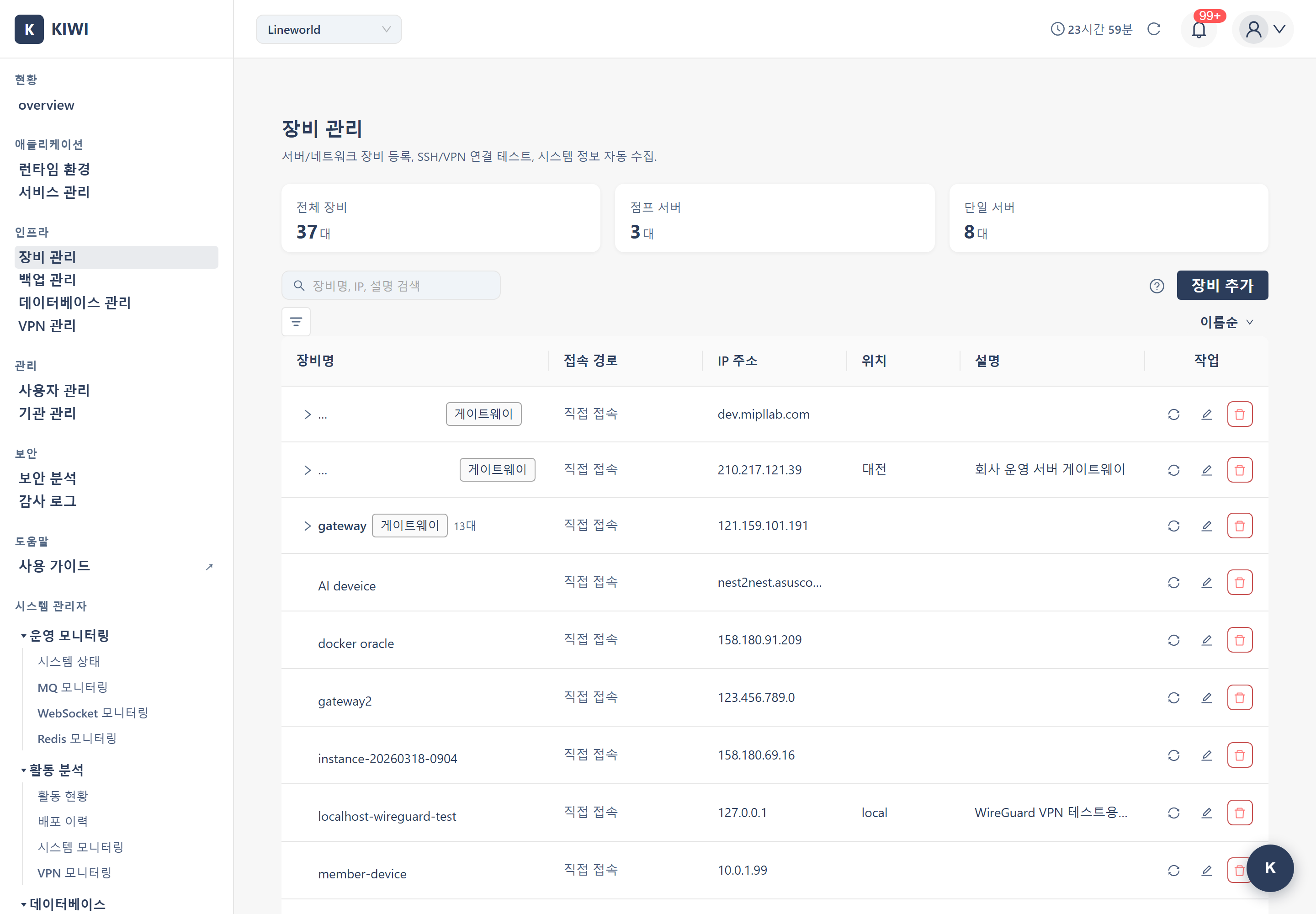
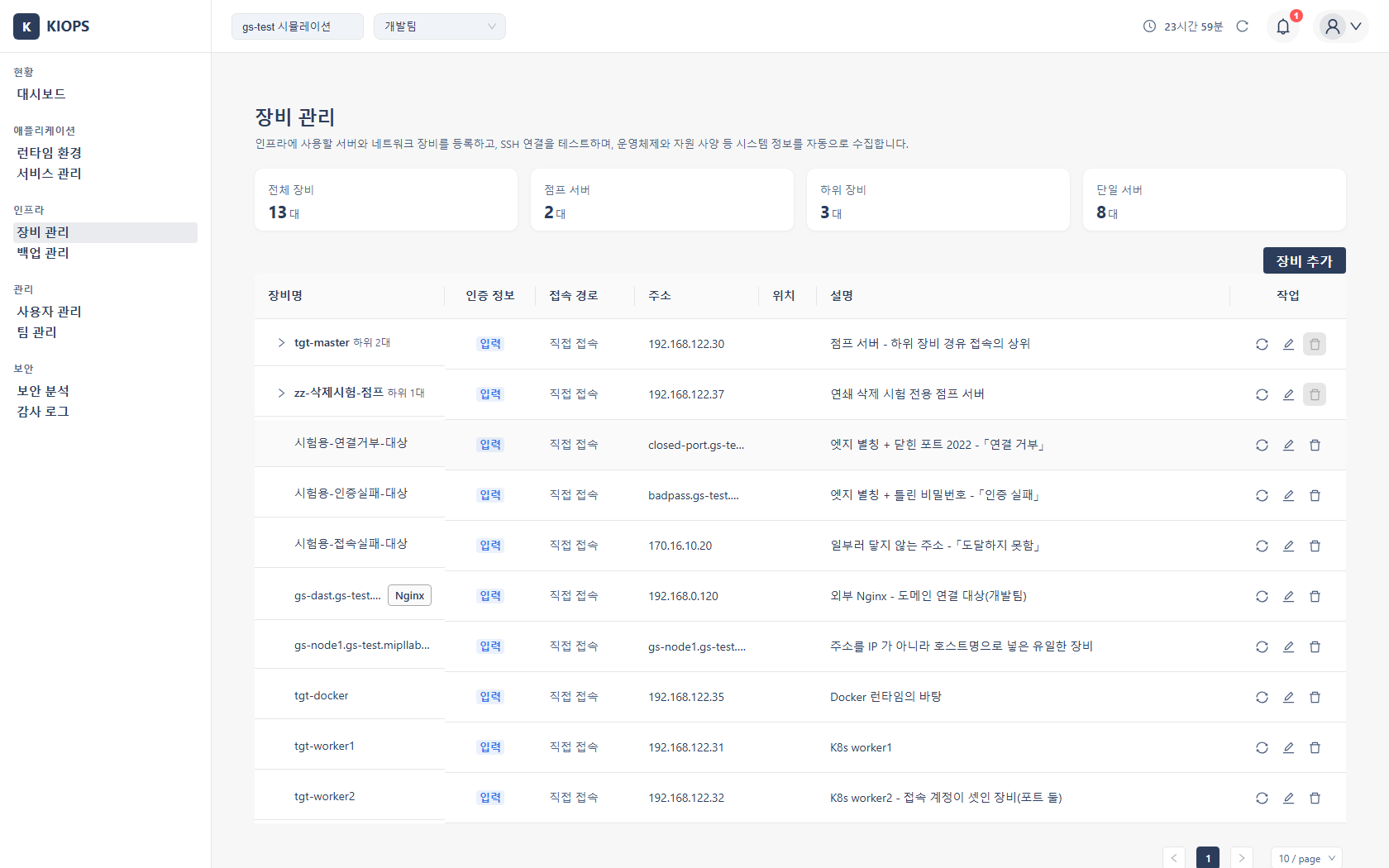
Permission Notice — If you cannot access this page, request permission from your organization administrator. Device management requires admin privileges as it directly affects the infrastructure.
What you can do here
KIOPS uses registered devices for runtime linkage, automated deployment, resource monitoring, and backups.
- Device registration: Register servers with SSH connection info. Registered devices can be connected as Kubernetes nodes or Docker hosts on the [Runtime Environments] page.
- SSH multi-hop: Automatically handles connections through a jump server (User PC → Jump Server [public IP] → Internal Server [private IP]). Just specify the parent device and KIOPS sets up the relay.
- VPN integration: Manage servers accessible only via VPN. VPN profiles are created and connected on the [Settings > VPN] page, not linked directly to the device.
- Automatic system-info collection: Collect OS/CPU/memory/disk info over SSH with no agent install.
Prepare: server IP and SSH port (default 22), an access account (password or SSH private key), and jump-server info if the server is behind a firewall.
Key elements
Connection method decision (VPN / Direct SSH)
When an operation starts, KIOPS evaluates the target device's access path and decides how to connect.
- Only one path (no VPN profile covers the target IP): connects automatically over Direct SSH with no selection modal.
- Both direct and VPN possible (target IP covered by a VPN profile's AllowedIPs): the connection method selection modal appears.
- VPN: Connect through the VPN tunnel. If no active session exists, a quick-connect modal opens to prompt a connection.
- Direct SSH: Use the registered multi-hop chain (jump server → target) as-is.
- VPN path benefit: When an active session exists and the target IP is within AllowedIPs, KIOPS skips the jump-server hop and connects using only the target server's SSH info (no jump-server credentials needed). Direct SSH needs credentials for every hop.
The former Auto / VPN / Direct SSH three modes have been consolidated into just VPN / Direct SSH.
Device list (7 columns)
- Device name: The identifier (for example, prod-web-01). Devices with children also show a Gateway tag and the child count (for example, 3). A Nginx role tag marks an external Nginx-only server. Turn it on with the "Use as Nginx server" checkbox in the edit form, and the device is then offered as an option under [Service Management > Domain Settings].
- Credentials: One of three — Entered (stored), Not Entered (none), or Unavailable (the lookup failed, so it is unknown). "Unavailable" does not mean the credentials are missing — the lookup failed. Refresh before you delete and re-enter them. Device Management is the source of SSH input, and stored accounts are reused by runtimes, services, backups, and DBs without re-entry.
- Access path: Direct Connection when there is no parent, or "via [parent name]" (hover reveals the relay IP). VPN-covered devices get a green VPN tag (connected, taking over the gateway route) when connected, or a VPN available tag when covered but not connected.
- Address: The server's IP address or hostname.
- Location / Description / Actions (edit, delete, collect system info).
Parent-child relationships are visualized as a tree. There is no separate VPN/location filter; search covers the device name, IP, and description fields.
Access credentials (per-port SSH accounts)
The Access Credentials section of the device edit screen manages this server's per-port SSH accounts. An account is stored against the address and port together, so runtimes, services, backups, and databases reuse it without re-entry. The port/account table activates once you enter an address.
- Add port/account: A single server can have multiple ports (e.g., 22, 5501), and each port can have multiple accounts. Choose Password or SSH Key, and optionally add a Label (e.g., Ops, Deploy).
- Default account: Mark one account per port as the Default. Click an account row to edit it.
- Connection badge: Shows the result of the last connection attempt — Connected (succeeded), Failed, or Not checked (never attempted). It is the result of the last attempt, not a tag showing which port is in use, so "Not checked" does not mean the account is wrong. Use [Test Connection] on the row to check it now.
- Credential status: One of three — Stored, Not registered, or Needs re-saving. "Needs re-saving" means the server cannot read the stored value (it happens after cloning an environment, rotating keys, or restoring the database); you do not need to delete and recreate the account — save the same account again. Passwords are never sent back to the browser, so the field is always empty.
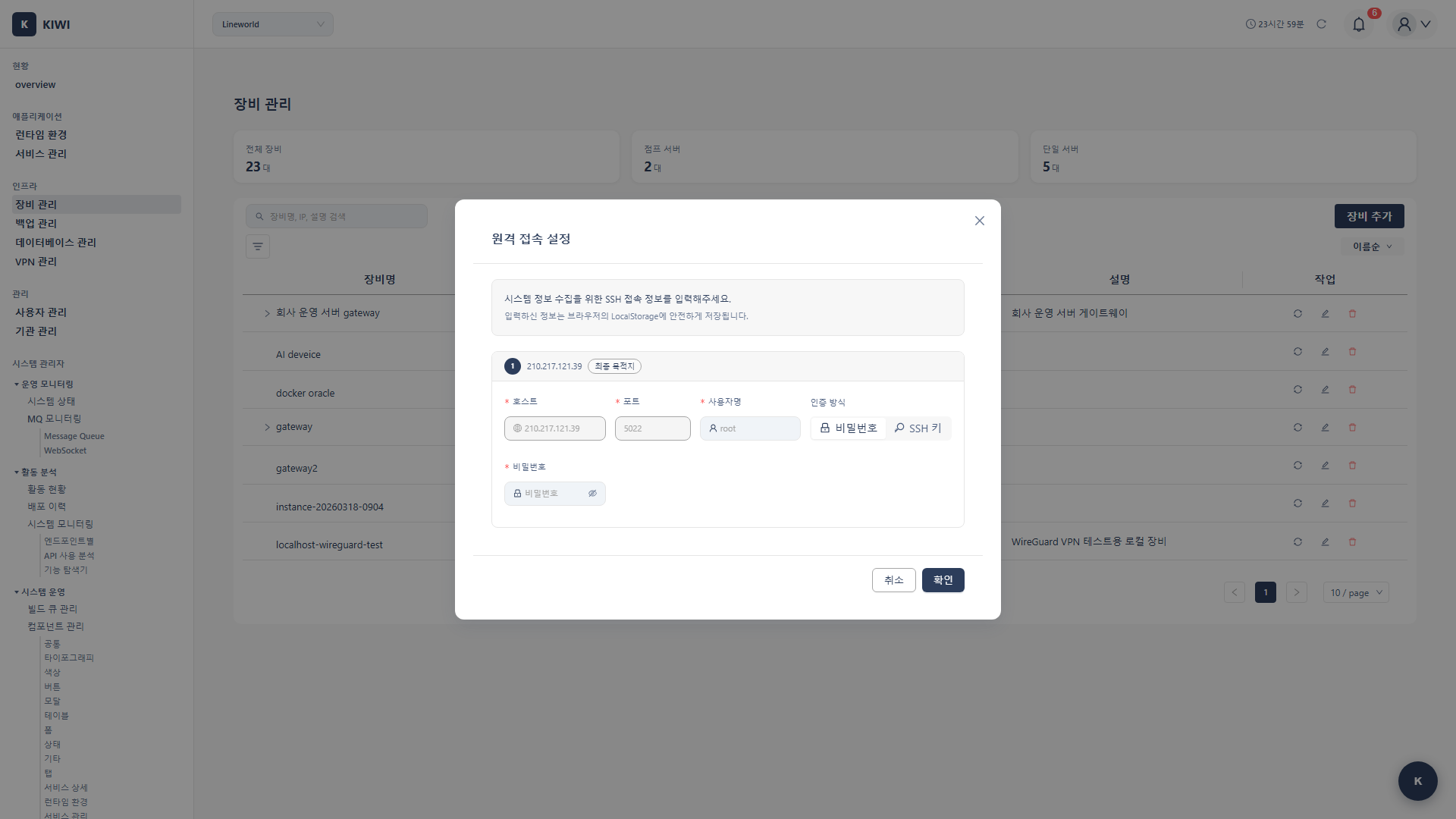
- Enter SSH credentials for the whole path: Enter and verify authentication for the entire path including the parent gateway, step by step (registered steps auto-show as Stored; fill only the empty ones).
- Enter VPN-path credentials: Appears only when this device's IP is covered by a registered VPN profile. Since the VPN replaces the gateway, enter only the target device's SSH info (username/password).
Credentials are stored encrypted on the KIOPS server, with no plaintext in the browser. The device registration/edit screen has no VPN Profile dropdown, and the Backup Storage role tag is not set from this form.
How to use
Register a device
Add Device (top of the screen) → enter basic info → Add.
- Parent device (optional): Jump server to route through. Leave empty if directly accessible.
- Device name (required): purpose-env-number format recommended (e.g., web-prod-01).
- IP address (required): Enter the private IP if a parent device exists.
- Use as Nginx server (optional): Marks the device as an external Nginx-only server (reuses its registered SSH credentials in Domain Settings).
- Location / Description (optional): Enter under the "Additional Info (Location, Hardware)" toggle.
The SSH port has no separate field at the top; it is managed in the port/account table of the Access Credentials section.
Configure SSH multi-hop
- Register the jump server (parent device) first (leave its parent empty).
- When registering the internal server, select the jump server in the Parent Device dropdown.
- After registration, the list shows the hierarchy; KIOPS routes through the jump server automatically for SSH.
Multi-hop credentials — Multi-hop requires SSH credentials for every hop (jump server and internal server each). Each hop can use a different authentication method.
Collect system information
Click the device's Collect icon → if a stored credential exists it is injected automatically and collection begins; otherwise an input screen appears (password, or an SSH key .pem/.key upload) → collects OS/CPU/memory/disk. The entered credential is stored encrypted and reused.
VPN integration
This is done on the [Settings > VPN] page.
- Select a VPN profile and go to the Connect Device step.
- Select the device to connect; a verification modal opens.
- Enter the device (and gateway) SSH credentials and click Start Verification to confirm connectivity through the tunnel.
- On success, click Connect.
Afterward, operations on that device connect directly when there is only one path, and show the VPN / Direct SSH modal when there is more than one.
Edit or delete a device
Edit: Edit (pencil icon) → modify → Save. Delete: Delete (trash icon) → affected-resource confirmation dialog → Delete.
Deleting a device also deletes the resources bound solely to it. The confirmation dialog shows the impact scope.
- Runtime environments to be deleted: Runtimes (K8s nodes, Docker hosts, etc.) that would lose their parent. A runtime that survives on another device (e.g., a multi-node cluster) is not deleted.
- Services to be deleted together: Services deployed on those runtimes — each is deleted along with its security scan results and connected DBs.
- Access accounts to be deleted together: The account is removed only when you delete the last device using that address. If another device still uses it, the account stays.
The items above are permanently deleted and cannot be undone; always review the list first.
Deletion is blocked when child devices exist — If the device has any child devices (devices using it as their parent jump server), deletion is blocked and a "Cannot delete device" notice with the child list is shown. Delete the child devices first, then the parent.
Editing stored credentials is done in [Device Management] — When a stored credential is missing or wrong and has to be entered again, KIOPS does not let you fix it in place. It directs you to that device's edit screen instead, so that credentials are managed in a single place. For not-yet-registered targets and in some wizard flows, an in-place input screen may still appear.