Security Analysis
Not sure where to start with software security? KIOPS's DevSecOps security analysis features help you automatically detect security vulnerabilities at every stage, from source code to running applications and infrastructure configuration.
The cost of fixing security vulnerabilities increases exponentially the later they are discovered in development. By continuously checking security from code writing to post-deployment, you can reduce costs and deliver secure software.
Accessing the Security Analysis Page
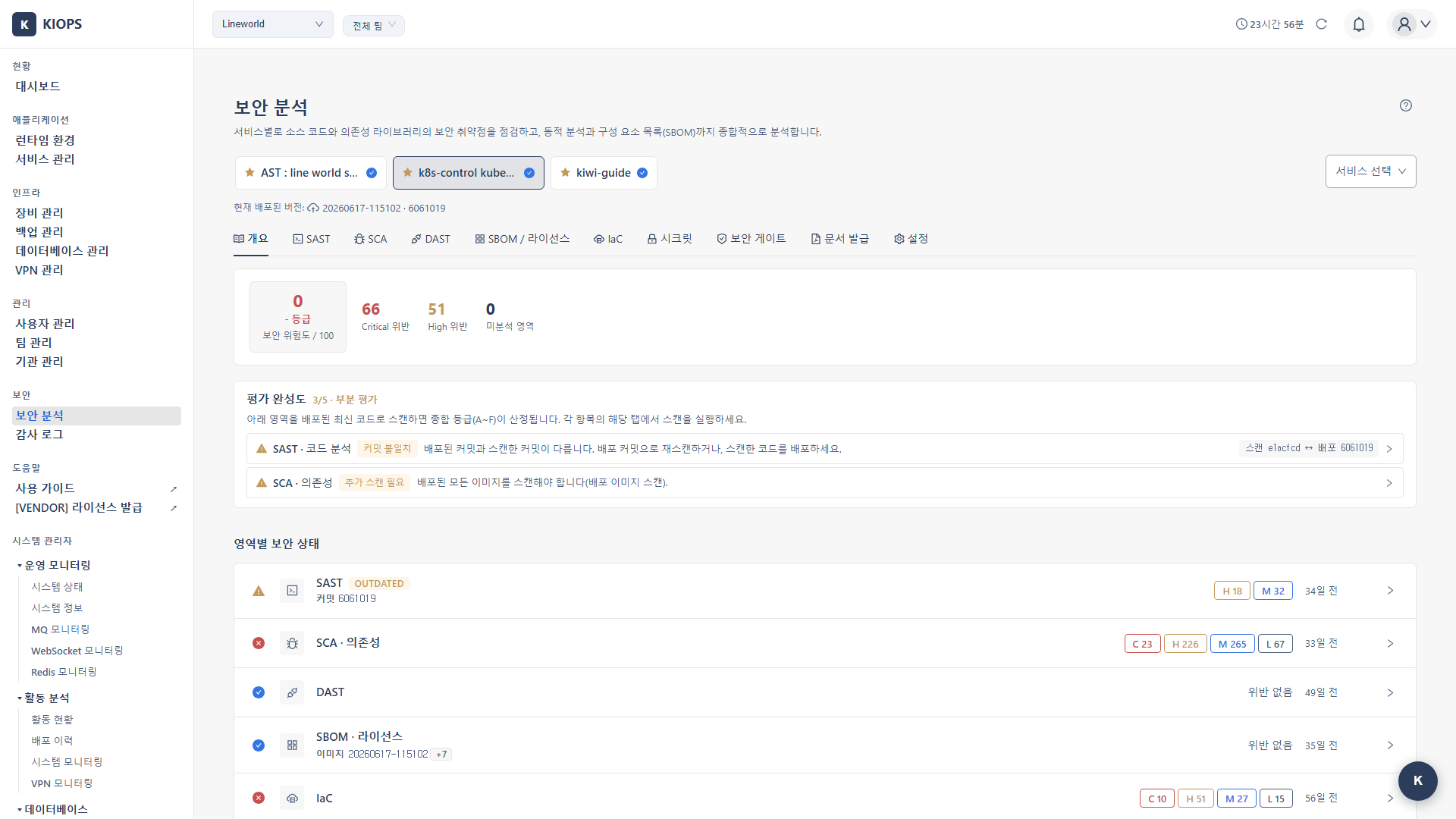
Security Analysis is a dedicated page in KIOPS. Click the [Security Analysis] menu under the "Security" group in the sidebar to enter it (path /security).
The usage flow after entering is as follows.
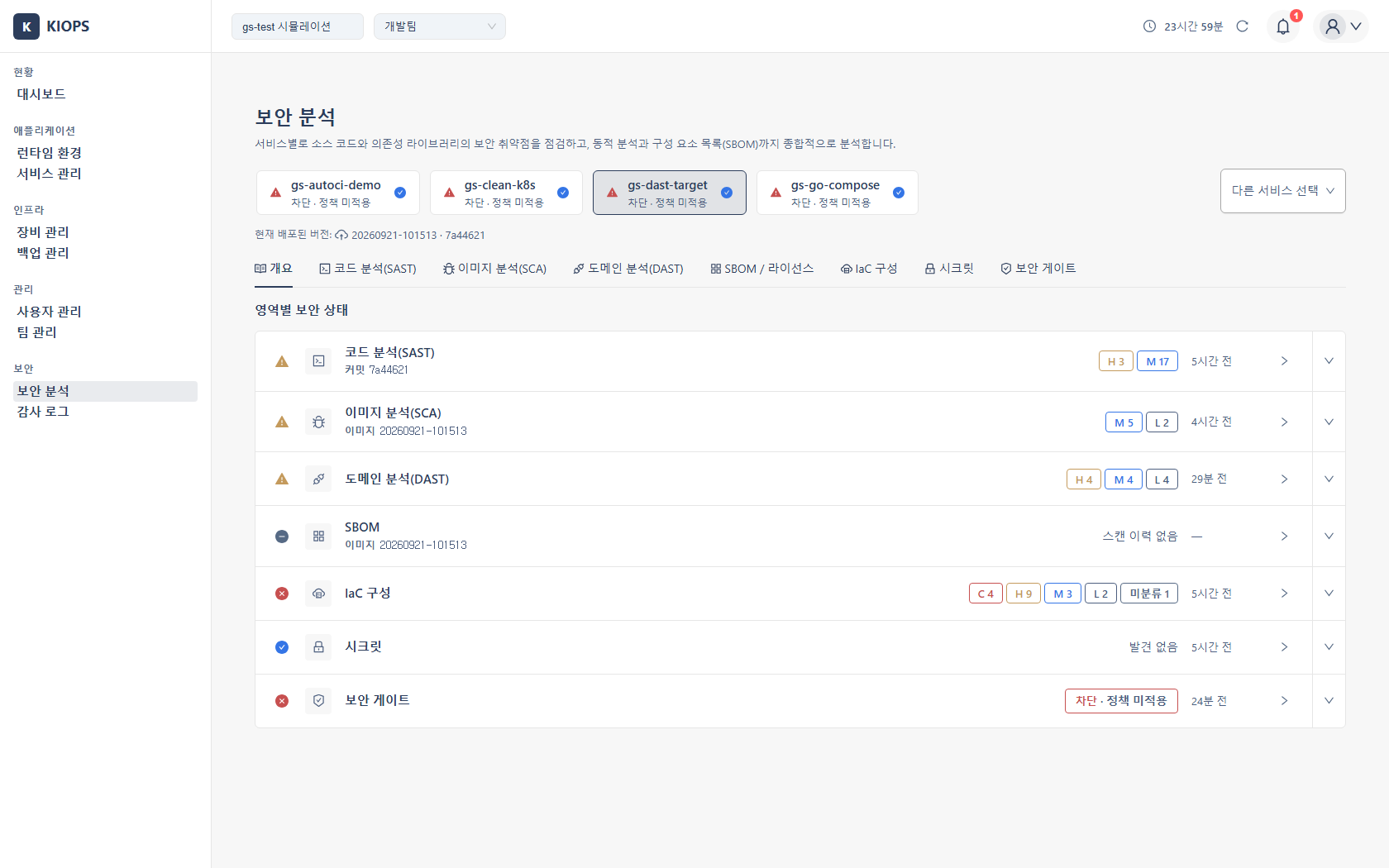
- Select a service to analyze from the service selection card carousel at the top of the page. You can filter by service name or Git URL with the search box.
- Nine tabs appear for the selected service. Move to the desired security area tab to run scans or view results. On on-premises Basic there are eight, as the Reports tab is not provided.
- If you select a service with no scan history, the Overview tab is shown first, guiding you on which analyses to run and in what order.
Previously, code analysis and image analysis were accessed from within the source/build cards of the service detail page. They have now been reorganized into the [Security Analysis] menu. All security areas are accessed via the path "[Security Analysis] menu > select service > corresponding tab".
Direct URL Entry
The Security Analysis page can open a specific service and tab directly via URL query parameters.
?id={serviceId}: Specifies the service to select.?area={tabKey}: Specifies the tab to auto-select on entry (overview,sast,sca,dast,sbom,iac,secrets,gate,reports).
Example: /security?id=12&area=sast directly opens the SAST tab for service 12.
Tabs
The security analysis of a selected service consists of nine tabs. On on-premises Basic the Reports tab is excluded, leaving eight.
| Tab | Role | Tool |
|---|---|---|
| Overview | Per-area security status plus the security score and grade (same formula as the dashboard). Opens automatically when there is no scan history. The score and grade are not shown on on-premises Basic | - |
| SAST | Static source code analysis | Semgrep + OpenGrep (run sequentially, merged as a union) |
| SCA | Image / dependency vulnerability (CVE) analysis | Trivy + Dependency-Check (run together) |
| DAST | Dynamic analysis of running apps | ZAP + Nuclei (run together) |
| SBOM / License | Component inventory and license analysis | Syft · ScanCode Toolkit (run directly as an independent scan in the tab) |
| IaC | Configuration error checks of infrastructure definition code | Checkov |
| Secret | Detection of exposed keys / tokens in code and commit history | Gitleaks |
| Security Gate | Combined deployment readiness verdict from the other areas | OPA |
| Reports | GS certification document generation, with the compliance status of the required scans. Not provided on on-premises Basic | - |
The Overview Tab
The Overview tab summarizes the selected service's overall security status on a single screen. A KPI header at the top shows the security score and grade, followed by per-area status labels. Expanding View tools and analysis criteria at the bottom shows which tool analyzes what in each area (licenses appear on their own row, separate from SBOM, for 8 rows).
- Security Summary: Summarizes the entire security analysis of the selected service.
- Security Score (0-100): A risk-based security score that uses the same formula as the dashboard risk score. It deducts from a base of 100 by severity (Critical -20 · High -8 · Medium -3 · Low -1). It then applies a ceiling based on the worst severity — any Critical caps the score at 70 (at most C), High as the worst severity caps it at 79, and Medium at 89. It is shown as an A-F grade (A ≥ 90 · F below 60).
- Assessment state: three states, depending on scan coverage. With no scan history or entirely stale results the service is not assessed ("-"); when only some areas are fresh the grade carries a (provisional) marker; when every area is fresh the grade is confirmed. A provisional grade drops its ceiling by 10 points per uncovered area, so a service with only one or two areas scanned never appears as an A. See the Status Reference for the exact values.
- Critical and High counts: The combined count of Critical/High vulnerabilities across the scored areas (SAST · SCA (deployed images) · IaC · DAST · Secrets). SBOM, License, and Gate are excluded from the score and this count.
- Per-area status labels: Displays the status of each area (SAST, SCA, DAST, SBOM, IaC, Secret, Gate) as tags. Clicking a label jumps directly to that security area tab.
The Seven Security Areas
SAST (Static Code Analysis)
Inspects source code with pattern-based analysis without building it to find vulnerable code. KIOPS runs Semgrep first and then runs OpenGrep when it succeeds, merging their results as a union. There is no tool selection toggle.
- SQL Injection (CWE-89), XSS (CWE-79), Command Injection (CWE-78)
- Hardcoded Credentials (CWE-798), Path Traversal (CWE-22)
Details: SAST Scan
SCA (Composition Analysis)
Finds known CVE vulnerabilities in OS packages and library dependencies of built container images. KIOPS runs Trivy and Dependency-Check together and merges their results as a union.
Details: SCA Scan
DAST (Dynamic Analysis)
Sends requests from outside to a deployed, running web application to find runtime vulnerabilities. ZAP and Nuclei run simultaneously on the same target domain, and results are unified and displayed in a single row.
Details: DAST Scan
SBOM / License (Component Inventory)
The Software Bill of Materials (SBOM). SBOMs are produced by Syft and source licenses by ScanCode, output in CycloneDX 1.6 format. License information is identified together.
The SBOM is an independent scan rather than a by-product of SAST or SCA. That said, running an image SCA also requests the SBOM and license analysis for that image, while a source SBOM runs only from the [SBOM / License] tab.
Details: SBOM Generation
IaC (Infrastructure Code Analysis)
Checks infrastructure definition code such as Dockerfiles, Kubernetes manifests, and Terraform for security misconfigurations. Uses Checkov.
Details: IaC Scan
Secret (Credential Detection)
Detects exposed API keys, tokens, and passwords across the Git repository code and entire commit history. Uses Gitleaks.
Details: Secret Scan
Security Gate (Deployment Verdict)
Comprehensively evaluates the scan results of the 6 security areas excluding the gate (SAST, SCA, DAST, License, IaC, Secret) against policy criteria to determine deployment readiness. License risk is sourced from the SBOM scan, while the SBOM component inventory itself is not subject to gate evaluation. Uses OPA (Open Policy Agent) policies.
Details: Security Gate
The per-area status labels follow the tab layout and show 7 (SAST · SCA · DAST · SBOM · IaC · Secrets · Gate), while the View tools and analysis criteria list separates licenses from SBOM and shows 8 rows. Licenses are information derived from the SBOM scan, so they have no dedicated tab and share the SBOM / License tab.
Understanding Security Terms
Seeing a lot of unfamiliar terms? Let's explain them one by one.
- SAST (Static Application Security Testing): Analyzes source code without executing it to find security vulnerabilities.
- SCA (Software Composition Analysis): Checks whether the external libraries and packages used in a project have known security vulnerabilities.
- DAST (Dynamic Application Security Testing): Finds vulnerabilities by sending HTTP requests to a running application.
- SBOM (Software Bill of Materials): A list of all components included in the software.
- IaC (Infrastructure as Code): Infrastructure defined as code, such as Dockerfiles, K8s manifests, and Terraform.
- CVE (Common Vulnerabilities and Exposures): A unique identifier assigned to publicly known security vulnerabilities.
Severity Classification and Response Guide
CVSS-Based Severity
CVSS (Common Vulnerability Scoring System) is a scoring system that standardizes vulnerability severity on a scale of 0-10.
- Critical (CVSS 9.0-10.0): Requires immediate response.
- High (CVSS 7.0-8.9): Requires response within 24-48 hours.
- Medium (CVSS 4.0-6.9): Requires response within 1-2 weeks.
- Low (CVSS 0.1-3.9): Can be addressed in the next release.
- Info (N/A): Optional response. Use as reference information.
When Critical or High severity vulnerabilities are discovered, immediate action is required. Especially in production environments, there is a risk of these vulnerabilities being exploited, so prepare quick patches or temporary workarounds.
Quick Start: Full Security Analysis Flow
If this is your first time, follow these steps to experience the full security analysis.
- Click the [Security Analysis] menu in the sidebar.
- Select a service to analyze from the card carousel at the top.
- Expand View tools and analysis criteria in the Overview tab first to check each area's tool and prerequisites.
- Register the Git URL, branch, and token in the Settings tab (common to SAST/IaC/Secret).
- Run static source code analysis in the SAST tab.
- Analyze CVEs in built images in the SCA tab.
- The image SBOM and license analysis are requested along with this SCA run. Run a source SBOM from the SBOM / License tab when you need one.
- Check infrastructure misconfigurations and exposed credentials in the IaC and Secret tabs.
- After deploying the service, analyze runtime vulnerabilities in the DAST tab.
- Check the combined deployment verdict of the 6 areas in the Security Gate tab.
Security Analysis Best Practices
Shift-Left Security
"Shift-Left" means moving security checks earlier (to the left) in the development process.
- Run SAST from the beginning of development: Finding vulnerabilities at the time of coding makes fixes easier.
- Check SCA when adding dependencies: Verify there are no known vulnerabilities before introducing new packages.
- Check secrets regularly: Promptly revoke and rotate exposed keys/tokens.
Vulnerability Management
- Prioritize Critical/High
- Manage false positives: Classify confirmed false positives as false_positive and acknowledged un-fixed items as accepted_risk (risk accepted).
- Regular rescans: New CVEs are constantly discovered, so rescan regularly.
- Use the Security Gate: Comprehensively check the 6 area results before deployment.
Related Features
- Service Build/Deploy - Managing services subject to security analysis
- Operations Management - Real-time security monitoring
- Auto CI Setup - Automated security analysis settings