Docker Runtime Registration
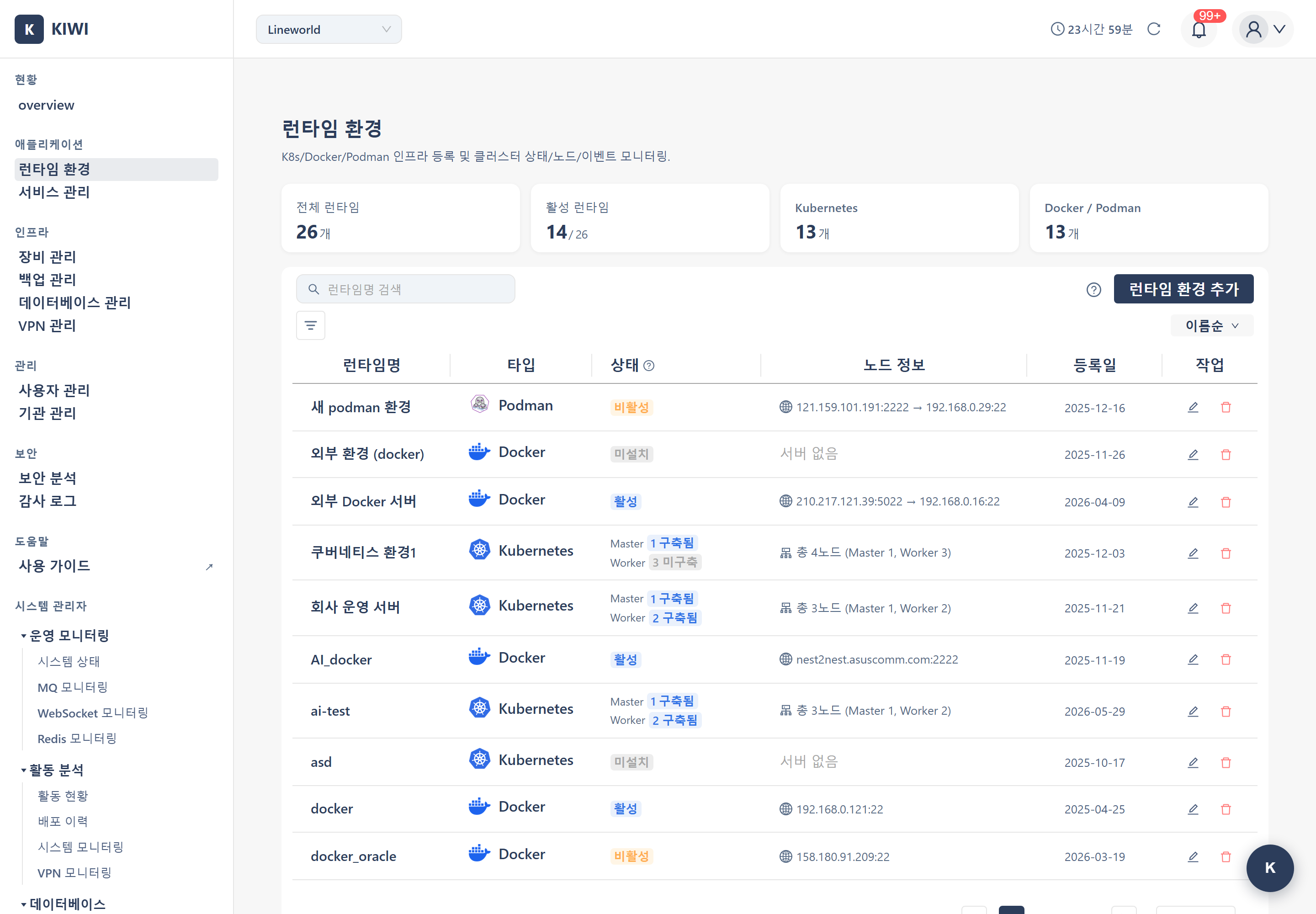
Register a Docker or Podman runtime in KIOPS to manage containers from the web UI. Like K8s, registration follows one of two flows: Install New Runtime or Connect Existing Runtime (Import). Docker and Podman are handled through the same modal.
Why Register a Docker Runtime?
- View container status at a glance
- Perform operations such as container restart with a single click
- Check real-time logs and trace issues
- Inspect container internals through remote command execution
Both Docker and Podman are container runtimes. Podman is a security-focused alternative that runs without a daemon, and KIOPS supports both. The registration flow and modal are identical.
Prerequisites
- The target device must be registered in KIOPS first.
- For new installation, KIOPS installs Docker or Podman via SSH.
- For import, the target device must already have Docker or Podman installed.
- The SSH account must have sudo permission or access to the Docker socket.
Entry Point: Add Runtime Environment
Docker/Podman runtimes also do not have a dedicated "Add Docker" button - they start from the same shared entry point as K8s.
- Click [Runtime Environment] in the left menu.
- Click the Add Runtime Environment button in the top right to open the Add Runtime Environment modal.
- Choose one of the two flows:
- Install New Runtime → New install flow
- Connect Existing Runtime → Import flow
The Environment Type field in the modal is a unified Select dropdown that lists K8s/Docker/Podman together (a "type radio" is not used). The two modals render the option text differently:
- Install New Runtime modal: Options appear in lowercase English as
kubernetes/docker/podman. - Connect Existing Runtime (import): The Environment Type dropdown shows the labels "외부 Kubernetes / 외부 Docker / 외부 Podman" (External Kubernetes / External Docker / External Podman).
New Install Flow
KIOPS SSHes into a registered device and installs Docker or Podman directly.
Step 1: Input
- Environment Name: Identifier for the runtime (e.g.,
dev-docker,prod-container-host) - Environment Type (Select): Pick
DockerorPodman. - Server Device (TreeSelect): Pick a device from the tree.
- Devices that already have a Docker/Podman runtime installed are automatically disabled and cannot be selected.
- Description (Optional): Free-form memo
Step 2: SSH Path Preview
If the selected device has a parent (jump server), the modal renders the hop chain as arrows (gateway → jump → target) at the bottom. Fix the device registration first if the path is not what you expect.
Step 3: Register
Clicking Register triggers KIOPS to SSH into the device, install Docker or Podman, and register the runtime. Progress is shown in the modal in real time.
Import Flow
Register a device that already has Docker or Podman installed as a runtime.
Step 1: Select Environment Type
In the Connect Existing Runtime dialog, the Environment Type dropdown labels are shown as "외부 Kubernetes / 외부 Docker / 외부 Podman" (External Kubernetes / External Docker / External Podman). The underlying values are external_kubernetes, external_docker, and external_podman. Each label carries the '외부' (External) prefix and keeps the English runtime name as it is.
- Docker: An existing Docker host (internal identifier
external_docker) - Podman: An existing Podman host (internal identifier
external_podman) - Kubernetes: An existing K8s cluster (see the K8s registration guide)
Step 2: Provide Connection Path
- Use Select a registered device or Enter SSH hops directly.
Step 3: Import
- Click Import. KIOPS connects via SSH, runs
docker versionorpodman version, and auto-detects containers, images, networks, etc. - There is no separate "Test Connection" button (validation happens during import).
Step 4: Register
When validation succeeds, the runtime appears in the list. Docker and Podman share the same operations screen (Overview / Runtime Environment / Operations / Real-time Monitoring) after registration.
Runtime Features
The following features are available on registered Docker/Podman runtimes:
- Image list: View container images stored on the host
- Container management: Restart containers (from the list or detail view)
- Log viewing: Real-time container logs
- Remote command execution: Inspect container internals (one-shot command execution, not an interactive shell)
When a container has issues, the log viewing feature lets you identify the cause immediately without terminal access. Real-time log streaming is also supported.
Troubleshooting
Docker Access Denied (permission denied)
permission denied while trying to connect to Docker
Cause: The SSH user does not have permission to access the Docker socket.
Solution:
- Add the user to the docker group
sudo usermod -aG docker $USER
- Apply changes (choose one)
# Option 1: Apply immediately in current session
newgrp docker

# Option 2: Log out and log back in
- Verify permissions are applied.
docker ps
Adding a user to the docker group grants that user root-level privileges. In production environments, only grant permissions to users who absolutely need them.
Docker Not Installed (command not found)
docker: command not found
Cause: Docker is not installed on the target server.
The new install flow installs Docker for you automatically. If you need to install Docker manually, use the commands below.
# Docker official install script (Ubuntu/Debian/CentOS)
curl -fsSL https://get.docker.com | sh

# Start Docker service after installation
sudo systemctl start docker

# Enable auto-start on boot
sudo systemctl enable docker

# Verify installation
docker --version
Next Steps
Docker/Podman runtime registration is complete! You're now ready to register and deploy services.
- Service Registration - Register services to deploy
- Docker Deployment - Deploy services as Docker containers.