User and Permission Management
As a team grows, you need a clear separation of who can do what. KIOPS permission management lets you grant each member only the permissions they need, strengthening security and preventing accidental damage.
Why Permission Management Matters
With permission management you can control the following.
- Accidentally deleting a production server: without it, anyone can; with it, only managers can.
- Exposure of sensitive data: without it, every employee has access; with it, only the owners do.
- Departed employees' accounts: without it, you have to find and disable them manually; with it, you can remove them immediately.
- Accountability during audits: without it, attribution is unclear; with it, the audit log shows exactly who did what.
Principle of Least Privilege: grant each user only the minimum permissions needed to do their job. Unnecessary permissions increase risk.
Permissions Are Decided on Two Axes
KIOPS permissions come from two distinct axes: the organization role and the team role. They are not alternatives — they work together.
Organization Role (level of control within the organization)
- PlatformAdmin: the top-level role. Can view and manage every organization and user, and reach system administrator screens such as DB Explorer and Activity Analysis.
- Manager (organization administrator): grants and revokes permissions, handles join approvals, composes teams, and manages organization resources.
- Member: a regular user who can only use features within the page permissions they have been granted.
Team Role (level of control within a team)
- TeamManager: has access to all eight pages within their own team, with no need to be granted page permissions separately. However, the data they can see remains limited to their team's scope.
- Member: belongs to the team, but page access follows whatever permission categories they were granted.
In short: the organization role decides "how much of the organization you manage", the team role decides "how much of your team you manage", and permission categories decide "which pages you can enter".
In an on-premises deployment, PlatformAdmin is the support account of the vendor that performed the installation, and the customer's top-level administrator is the organization Manager. On-premises also fixes PlatformAdmin at exactly one account by blocking both promotion and revocation. See Plans and Feature Scope for the full set of differences.
Permission Categories
There are eight permission categories, one per feature page. An organization administrator grants them individually.
- service (Service Management): access to [Service Management]. Git integration, build, deploy, operations, domain connection.
- infra (Runtime Environment): access to [Runtime Environment]. K8s/Docker/Podman environments, nodes, and resources.
- backup (Backup Management): access to [Backup Management]. Backup, restore, and external storage management.
- device (Device Management): access to [Device Management]. Registering, editing, and deleting servers and devices.
- database (Database Management): access to [Database Management]. DB connections, synchronization, migration.
- security (Security Analysis): access to [Security Analysis]. SAST/SCA/DAST/SBOM/IaC/secret scans and the security gate.
- vpn (VPN Management): access to [VPN Management]. VPN profile configuration, connection, and testing.
- audit (Audit Log): access to [Audit Log]. Viewing and exporting logs.
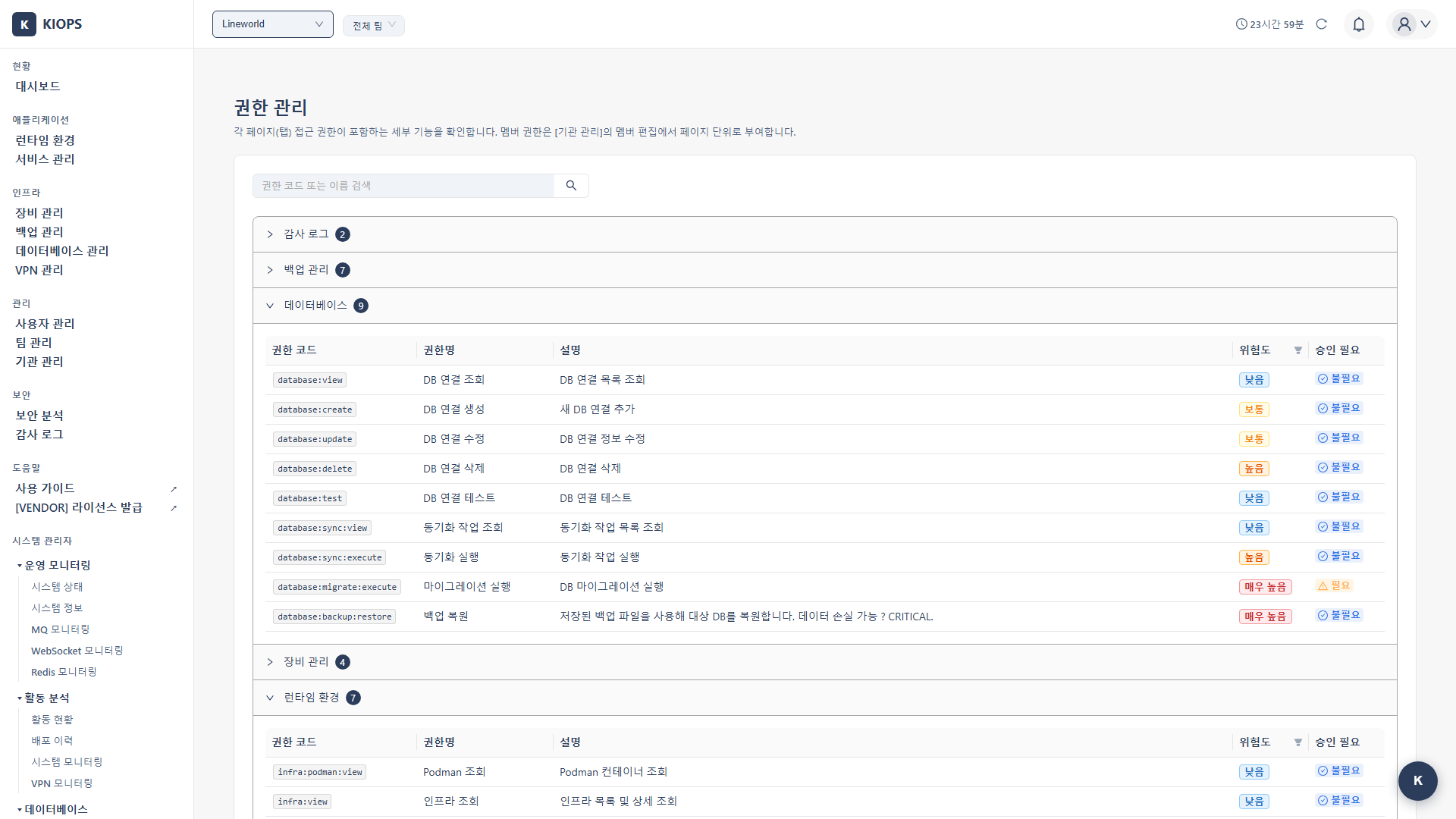
Granting page access grants every action on that page. Splitting permissions per action was removed in the July 2026 simplification.
The [Permission Management] page is a read-only reference showing which detailed capabilities (for example service:build:execute) each page permission includes. You do not grant or revoke permissions there.
Pages that are not included in your current license do not appear at all in the role edit modal, because granting them would produce a "ghost permission" that only ever results in the user being blocked. On on-premises Enterprise and SaaS you can check what is included from the Plan menu in the header; on-premises Basic does not provide that screen, so see Plans and Feature Scope.
Who Can Change Whose Permissions
There is a single entry point for changing permissions: the [User Management] page. The [Team Management] screen only handles team composition (assign and remove); roles there are shown read-only.
- PlatformAdmin: changes roles and permissions for users in any organization. On-premises, PlatformAdmin promotion and revocation are blocked.
- Manager: changes organization roles, appoints and removes team managers, and edits page permissions for members of their own organization. Promoting a Member to Manager, or granting PlatformAdmin, is reserved for PlatformAdmin.
- TeamManager: can adjust page access permissions only, and only for regular members of their own team.
- Other team managers, organization administrators, and platform administrators cannot be targeted.
- They cannot appoint or remove team managers. This closes the path by which permissions could multiply on their own.
- They cannot change organization roles (Manager/Member) either.
No one can change their own role. Ask another administrator.
Revoking PlatformAdmin, appointing or removing a team manager, changing an organization role, and changing organization or team assignment all invalidate that user's existing session. The user is sent to the login screen on their next request and recovers by signing in again. This prevents a session from retaining the old permissions.
Changing a User's Permissions
Required: organization administrator or above, or a team manager (limited to regular members of their own team)
Step 1: Open User Management
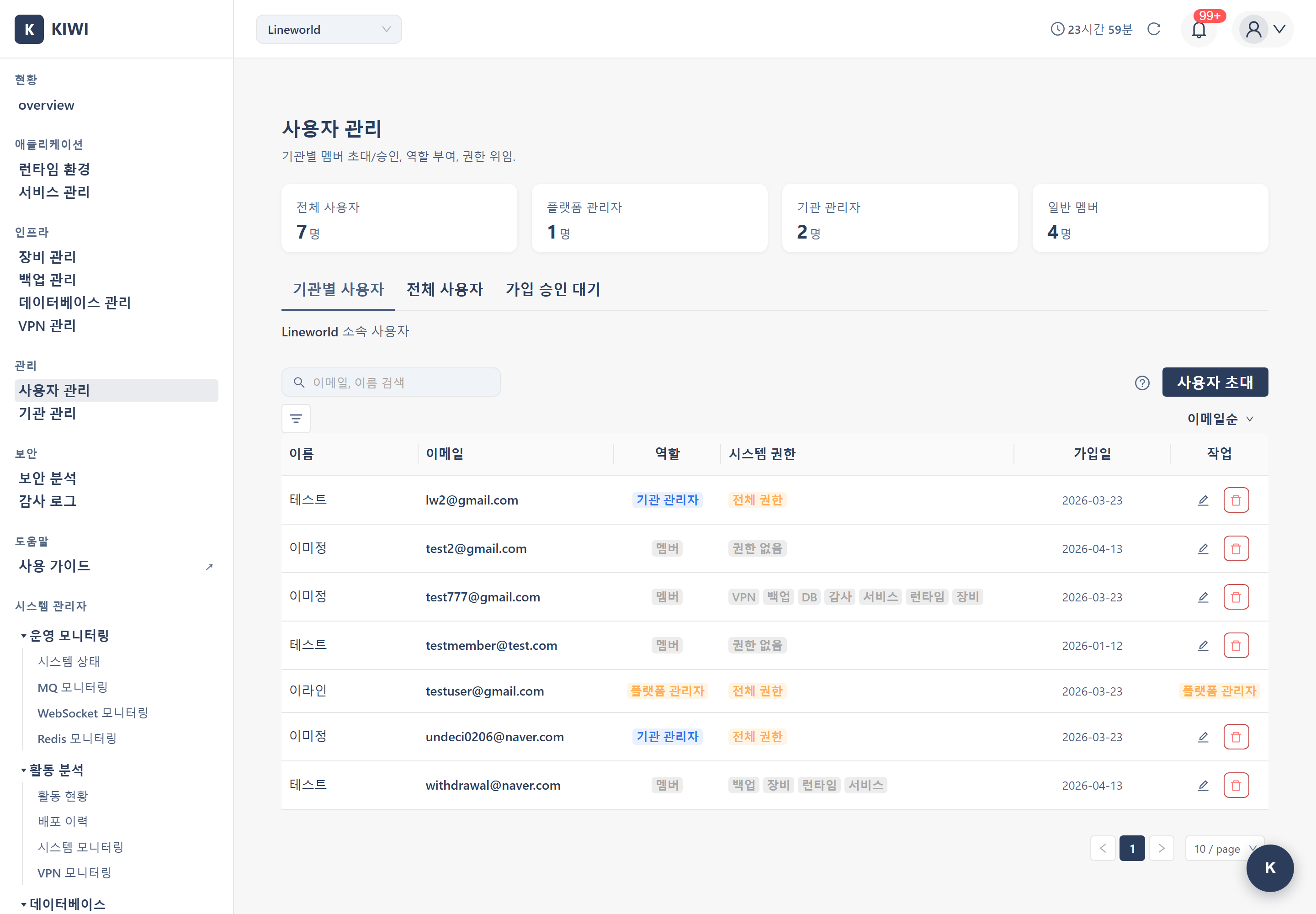
Click [User Management] in the left menu. The list has a Team column and team filter so you can narrow by team.
Step 2: Select the user and edit permissions
Click Edit role/permissions on the target user's row to open the modal.
- If the role stays Member, a [Page Access Permissions] section appears. Check the pages to allow on the left, and the right side shows that page's description and available actions.
- If you set the role to organization administrator or team manager, the page permission checkboxes do not appear. Both roles hold full access within their own scope instead of receiving individual page permissions, so an informational banner is shown instead.
- Pages not included in your current license do not appear in the list at all.
Step 3: Save
Click Save. The change takes effect and is recorded in the audit log.
Requesting and Approving Access
Users without permission can request access from the UI instead of tracking down an administrator.
Requesting (users who need access)
- Open the Access Request card on the [Dashboard]. It appears expanded if you have no usable screens at all, and collapsed if you already hold some permissions.
- Select the screens you need. You can pick several at once.
- Choose the recipients — All, Team Managers, or Organization Administrators.
- Click Request. Screens you already requested are marked "(requested)" so duplicates are prevented.
Screens that are not in your license do not appear in this list at all, so that nobody requests something that would not work even once approved. If the screen you are looking for is missing from the list, it may be a license issue rather than a permission one — see Plans and Feature Scope, and contact whoever manages your license if needed.
If there is no administrator to route the request to, a notice appears saying so. Contact an organization administrator directly.
Approving (administrators)
Requests arrive as notifications. Find the access request under the Approvals tab of the Notifications list.
- Approving immediately grants the single page permission carried in the request and sends the requester a result notification. There is no need to open User Management and grant it by hand.
- Only the administrator who received that notification can approve it. You cannot process someone else's pending approval.
- Approving an already-processed request does not grant it twice.
Users Not Assigned to a Team
Menu visibility is decided by page permissions, but data scope is decided by team. As a result, a regular member who is not assigned to a team sees an empty list even on pages they have permission for.
In that case a notice explaining the cause appears at the top of the screen. Team assignment is performed on the [Team Management] page by an organization administrator or a team manager. See Team Management for details.
Administrators (platform and organization) see the whole organization without a team, so this notice does not apply to them.
Approving Join Requests
When a user signs up, their request enters the join approval queue.
Required: organization administrator (own organization only) or platform administrator (all requests)
Step 1: Open the Pending Approvals tab
On the [User Management] page, click the Pending Approvals tab. The pending count is shown after the tab name.
Step 2: Review the request
Check the requester's email, name, organization, and request time. Narrow results with the period filter (7 days / 30 days / all).
Step 3: Approve or reject
- Approve: registers the user as a member of the organization. Afterwards, assign them to a team and grant the page permissions they need.
- Reject: rejects the request (the user may apply again).
Organization-Level Management
Platform administrators can view users across all organizations at once on the All Users tab of the [User Management] page. Organization administrators do not see this tab and work only with members of their own organization.
Creating, editing, and deleting organizations happens on the [Organizations] page. This menu appears only on SaaS — on-premises has a single organization, so the concept is not surfaced and management is done by team instead.
Removing a User
Required: organization administrator (own organization) or platform administrator
Step 1: Select the user
On the organization users tab of the [User Management] page, click the Remove icon on the target user's row.
Step 2: Confirmation modal
Review the stated impact in the confirmation modal before proceeding. The removed user leaves the organization and their permissions and team membership are cleaned up together.
Removals that would leave the organization with no administrator, and states where a user remains in a team but not in the organization, are blocked in advance.
What an organization administrator performs is normally removal from the organization. To delete the user account entirely, ask a platform administrator.
Your Profile and Password
See the [Profile] page documentation for how to edit your own account. Name changes, password changes, and account withdrawal are all handled in one place.
Troubleshooting
I get an "insufficient permission" message
The permission categories you hold do not cover that feature. Select the screen you need on the access request card on the [Dashboard] and submit a request.
A menu shown in this guide is missing from my screen
It may be a permission issue or a license issue. Both remove the menu from the sidebar, so the sidebar alone cannot tell them apart (there is no padlock). Open that screen's address directly — a 404 (nonexistent address) means the feature is not in your license, while an "access denied" card means it is a permission issue. See Plans and Feature Scope for the full procedure.
I have permission but the list is empty
You are most likely not assigned to a team. See Users Not Assigned to a Team above.
I was suddenly signed out after a permission change
This is expected: role and team changes invalidate the existing session. Sign in again and the new permissions will be in effect.
Common Mistakes
- Trying to grant page permissions to a team manager: a team manager already has access to every page within their team. The absence of checkboxes is correct.
- Trying to change roles on the [Team Management] screen: the single entry point for role changes is [User Management]. Roles on the team screen are read-only.
- Lost password: use the password recovery link on the login page, or ask an organization or platform administrator to reset it.
Related Guides
- Team Management - Creating and assigning teams, and team roles
- Plans and Feature Scope - Features excluded by license
- Audit Log - Reviewing user activity records
- Profile - Your details and password