Service Registration
Register services in the KIOPS platform to manage builds and deployments. KIOPS supports three source types: GitLab, GitHub, and Docker Hub, with different registration procedures for each.
Excluded on on-prem BasicService source type → GitLab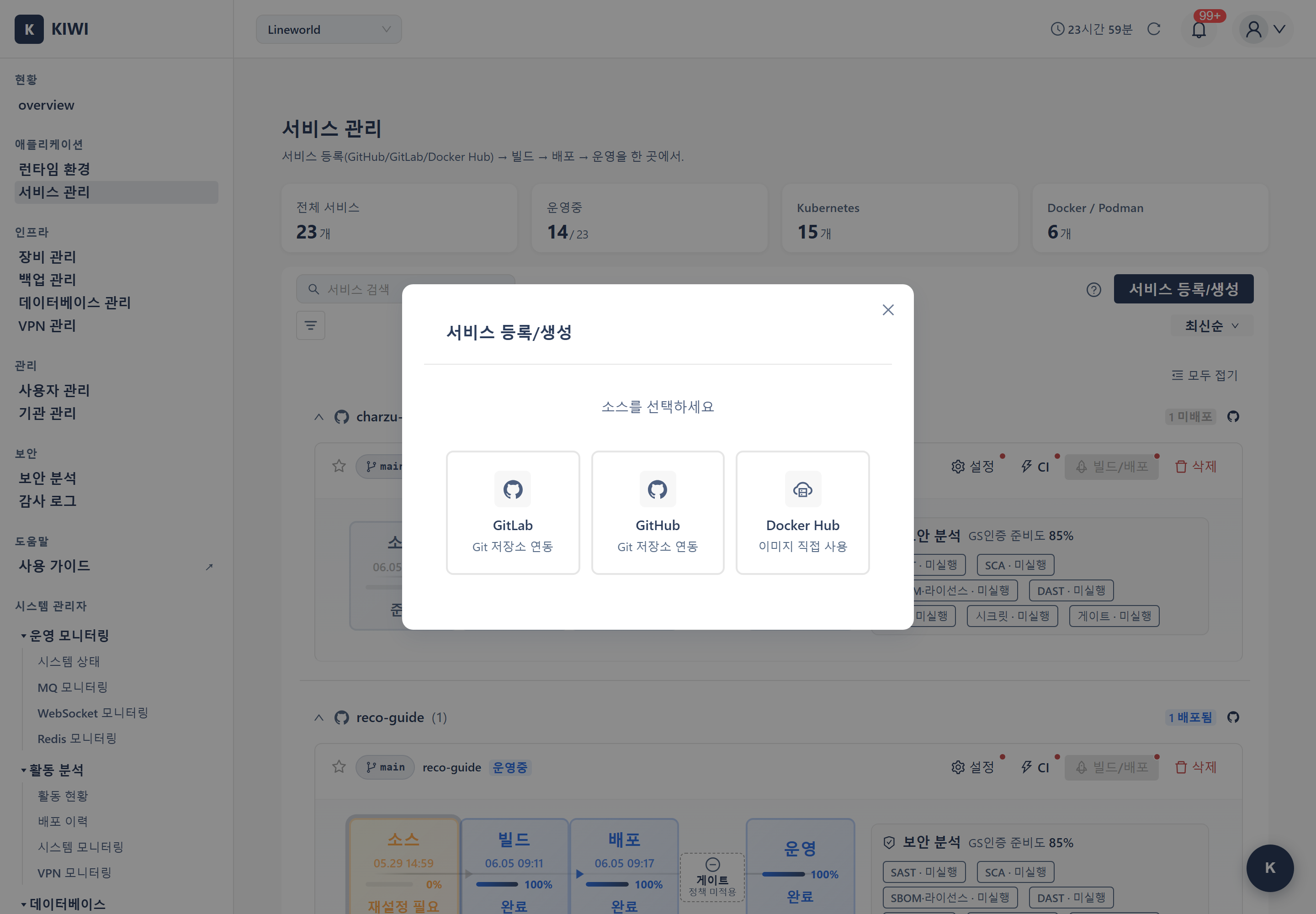
Why Register a Service?
When you register a service, you can automate the following DevSecOps workflow:
Code Push → Auto Build → Security Scan → Test → Deploy
- Automatic builds when code changes through Git repository integration
- Automatic security vulnerability analysis with SAST, SCA, DAST
- Deploy to Kubernetes or Docker with a single click
DevSecOps integrates Development, Security, and Operations. By considering security from the early stages of development, you can deliver more secure software faster.
Prerequisites
- The runtime (K8s cluster or Docker) to deploy the service to must already be registered.
- For GitLab/GitHub: An admin must register the organization-level token in advance. Regular users do not enter the token in the modal.
- For Docker Hub: Public images need no authentication; private images require a Docker Hub Access Token.
Register a runtime before registering a service:
Admin-only Menus vs Regular User Menus by Source Type
The behavior of the service registration modal depends on the source type and the user's role (admin/regular). Each source type has admin-only setup menus, while regular users automatically use the tokens that an admin has registered.
GitLab Action Menu (4 items)
- GitLab Settings [admin] - Register the GitLab server URL and access token at the organization level
- Create GitLab Accounts [admin] - Bulk-create GitLab accounts for organization users
- Register Existing Project - Pick from GitLab projects fetched with the organization token
- Create New Project - Use the organization token to create a new project on GitLab and register it in KIOPS
Regular users see only Register Existing Project and Create New Project.
GitHub Action Menu
- GitHub Settings [admin] - Register a GitHub Personal Access Token at the organization level
- Register Existing Project - Pick from GitHub repositories fetched with the organization token
- Create New Project - Use the organization token to create a new repository on GitHub and register it in KIOPS
Regular users see only Register Existing Project and Create New Project.
You do not enter a token when registering a service. KIOPS automatically fetches the organization's admin-stored token and uses it. If no token is registered, ask your admin to complete "GitLab Settings" or "GitHub Settings".
Docker Hub Action Menu
- Register Docker Hub Image - Enter an image name and tag directly to register (deploys without a source build)
Registration Procedure
Step 1: Navigate to Service Management Page
- Click [Service Management] in the left menu.
- Click the Register/Create Service button in the upper right corner.
Step 2: Select Source Type
Choose the source type and action in the registration modal.
- GitLab: Register existing project / Create new project
- GitHub: Register existing project / Create new project
- Docker Hub: Deploy a pre-built image directly
- If you have your own source code → GitLab or GitHub
- If you want to deploy a pre-built image → Docker Hub (public images like MySQL/Redis, or your own pre-built image)
GitLab Service Registration
Register Existing Project
Choose from the project list automatically fetched using the GitLab token registered by an org admin.
- Project Selection: Pick a project to register from the fetched list.
- Branch (Required): The default branch for builds (e.g.,
main,develop) - Service Name (Required): The service name to use in KIOPS (lowercase letters, numbers, hyphens recommended)
Create New Project
Create a new project on the GitLab server and register it as a KIOPS service in one step.
- Group/Namespace: The GitLab group where the new project will be created
- Project Name (Required)
- Service Name (Required): The KIOPS service name
- Branch: Defaults to
main
When the admin registers a token in "GitLab Settings", the following scopes are required:
api(Required): Full feature set (build, deploy, Auto CI, project creation, etc.)read_repository(Required): Source code fetchingread_api(Required for Auto CI): Webhook-based automatic builds
GitHub Service Registration
Register Existing Project
Choose from the repositories automatically fetched using the GitHub PAT registered by an org admin.
- Repository Selection: Pick a repository to register.
- Branch (Required): Pick a branch from the selected repository's branch list.
- Service Name (Required): The service name to use in KIOPS.
Create New Project
Create a new repository on GitHub and register it as a KIOPS service in one step.
- Organization/User: The GitHub owner that will own the new repository
- Repository Name (Required)
- Service Name (Required)
- Branch: Defaults to
main
Services registered with the GitHub source type have their K8s deployment namespace automatically set to the same value as service_name. You do not need to specify a namespace separately.
Docker Hub Service Registration
Docker Hub service registration is used to directly deploy pre-built Docker images without source code builds.
Step 1: Select Deployment Infrastructure
- Deployment Infrastructure (Required): Pick the runtime to deploy images to (K8s or Docker)
- Service Name (Required): Enter the service name
Step 2: Configure Images
A single service can include multiple container images. For each image, enter:
- Container Name (Required): Identifier for the container (e.g.,
web,db) - Image (Required): Docker Hub image name. Official images (
mysql,nginx, etc.) or user images (username/repo) - Tag (Required): Available tag for the selected image (e.g.,
latest,8.0,alpine) - Command (Optional): A command to run instead of the image's default CMD
Deployment settings such as port, environment variables, volume, external path, and internal-only are not configured during service registration; they are configured per environment at the deployment stage.
You can configure a web application + database as a single service:
- Image 1:
nginx:alpine(web server, port 80, external path/) - Image 2:
mysql:8.0(database, port 3306, volume/var/lib/mysql, internal only)
Step 3: Using Private Images (Optional)
For each image, choose its source with the Public/Private toggle. To use a private image you must have an already-connected Docker Hub account. The credentials are filled in automatically from that account, and there is no step to type a username or token directly in the registration modal. If no account is connected, selecting Private shows the message "Connect an account first to use private images." Public images require no authentication.
Step 4: Complete Registration
Click Register to register the Docker Hub service. Docker Hub services can be deployed directly without a build step.
Feature Comparison by Source Type
-
GitLab/GitHub (Git Sources)
- Source code builds (Dockerfile or Build Wizard)
- Auto CI (automatic builds on Git Push)
- Security scanning (SAST, SCA, DAST)
- Deploy built images to K8s/Docker
-
Docker Hub (Image Source)
- Deploy images directly without builds
- Multi-container configuration
- Public and private images
- Deploy to K8s/Docker
Features Available After Registration
- Manual Build: Build a Docker image immediately with a button click.
- Auto CI: Automatic build on a Git Push event.
- Build Wizard: Auto-generate a Dockerfile for projects without one.
- Security Scan: SAST/SCA/DAST.
- Deployment: Deploy to K8s or Docker (RollingUpdate, rollback supported).
Next Steps
Service registration is complete! Now it's time to build your CI/CD pipeline.
- Auto CI Setup - Configure automatic builds on Git Push
- Build Wizard - Automatic Dockerfile generation
- Security Scan Setup - Configure SAST/SCA/DAST analysis