Profile
Path: /profile
Permission: All logged-in users
A screen for viewing and managing your account information. Manage changing your name, changing your password, and deleting your account in one place.
How to open: Not a sidebar menu — click the profile icon at the top right of the screen and select Edit My Info.
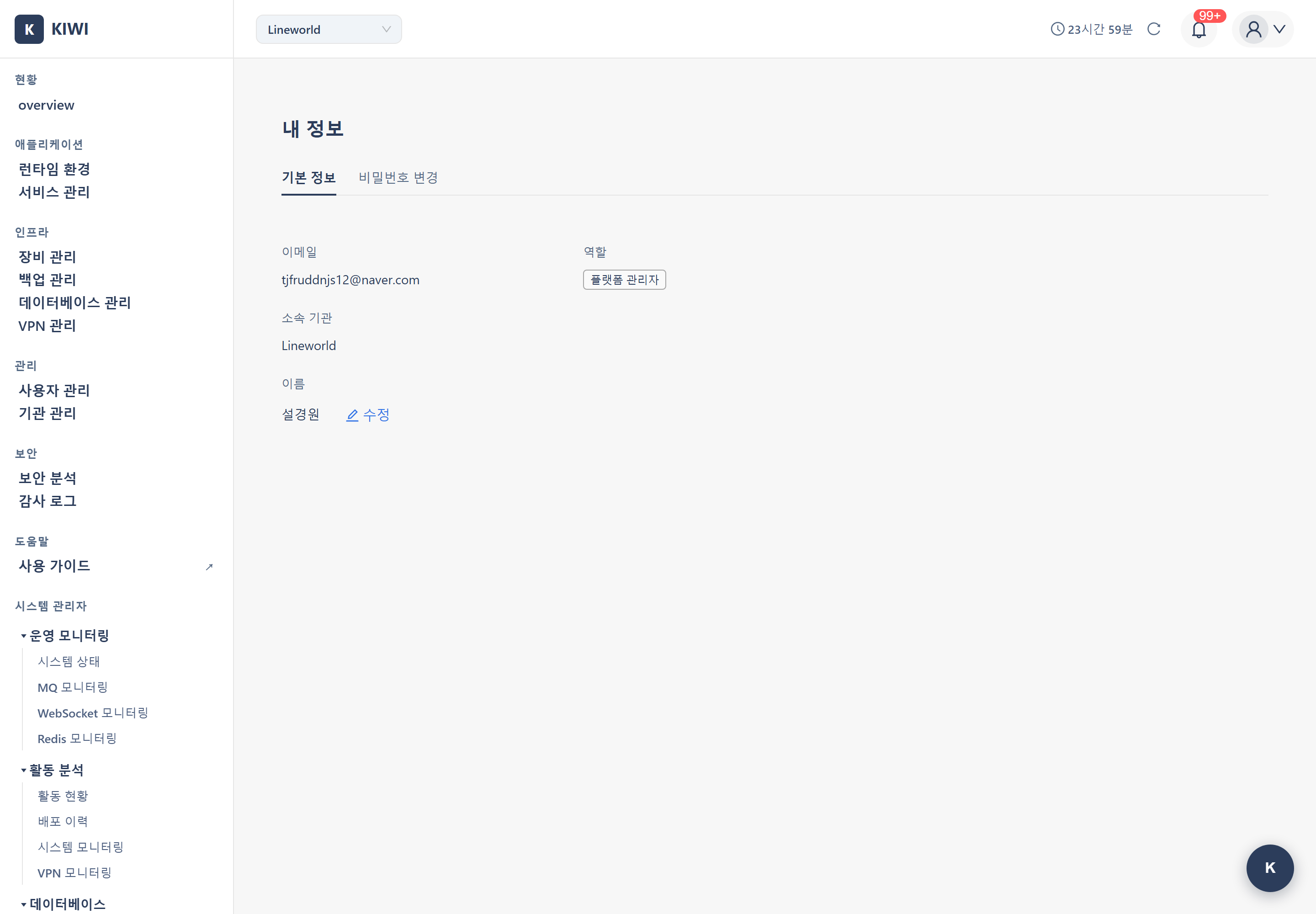
What you can do here
- View profile information: Check email, role, organization, and name.
- Edit your name: Change the name displayed to team members yourself.
- Change your password: Change to a new password after verifying the current one.
- Delete your account: Deactivate an account you no longer use yourself.
Key elements
Basic Information tab (info)
- Email: Used for login / as the account identifier, so it cannot be modified.
- Role: One of PlatformAdmin / Manager / Member. Assigned by an administrator and cannot be changed by yourself. See Permission Management for each role's permission scope.
- Organization: The name of the currently selected organization.
- Name: Edit inline with the Edit button (pencil icon) next to the name field. 2–50 characters in Korean or English. When saved, the display name at the top is immediately updated.
Change Password tab (password) — Enter current password (for identity verification) → new password → confirm new password, then click Change Password. Requirements: minimum 8 characters, a combination of 2 or more from letters / numbers / special characters, and different from the current password. KIOPS has no self-service reset, so if you lose your password, request a reset from a Manager or PlatformAdmin.
Account deletion — Start with the Delete Account button at the bottom of the Basic Information tab. The deletion modal requires you to pass all of the following before you can submit:
- Enter your current password and type your own email exactly (double confirmation)
- Choose how services you created are handled: "Release ownership only (keep services)" or "Delete services as well"
After completing the confirmation, your account is deactivated and you are automatically logged out.
- After deletion, you must register again with the same email, and previous permissions/resources are not automatically restored.
- Account deletions are not exposed to PlatformAdmin (to ensure system operation stability).
- If you have ongoing work or resources you manage, delegate permissions to another member before deleting.
Changing email — Email is the account's unique identifier and cannot be changed directly. If a change is needed, contact your Manager. They can create a new account and transfer your existing permissions.
Related tasks
- Login & Signup - Signup and organization membership
- User Management - Roles and permission grants
- Session Management - Session extension and logout