VPN Management
Path: /settings/vpn
This page registers, connects, and manages VPN profiles for secure access to internal networks from external locations. Only the WireGuard protocol is currently supported (OpenVPN/IPSec coming soon). If you cannot access this page, request the VPN Management permission from your organization administrator.
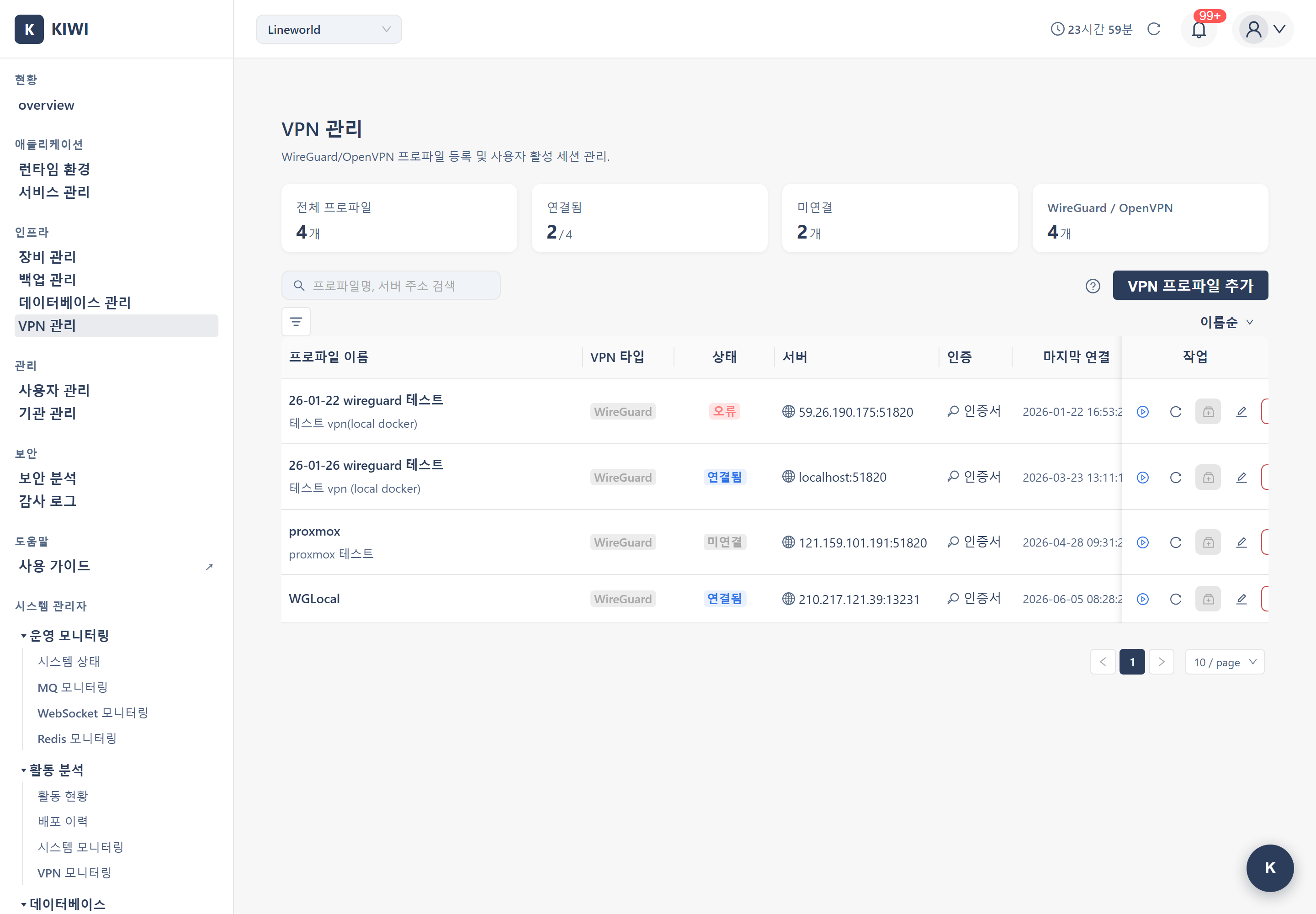
What you can do here
- Profile management: Save, edit, and delete VPN connection info (server address, port, keys) as profiles, and search/filter by name, server, type, or status.
- Connect/disconnect: Connect or disconnect a session with a profile. You can connect to multiple VPNs at once (multi-session).
- Connection test: Verify that profile settings are correct before actually connecting.
- Choosing a VPN at task time: VPN selection happens when you start a task (device/deploy/command execution) through the the connection selection dialog that opens. Separately, you can link the target devices to a profile — via the Link Devices step of the profile setup guide, or from [Device Management] — and the linked-device count is tracked on the profile.
Key elements
- Statistics cards: Total profiles / Connected / Disconnected / count by type (WireGuard, OpenVPN).
- Profile list (7 columns): Name, type, status, server, auth, last connected, actions. There is no "Linked Devices" column. When a session is active, the assigned local IP (
localIp) appears next to the status tag. For status values, see the Status Reference. - WireGuard key setup: The Generate Client Keypair button auto-generates the private/public keys. The private key is only saved and is not re-displayed in the UI, so copy the generated public key (PublicKey) and hand it to your WG server administrator. If entering manually, use
[Interface] PrivateKey(private key),[Peer] PublicKey(peer public key), and[Peer] PresharedKey(PSK, optional) from the config file (.conf). - Allowed IPs: IP ranges to route through the VPN tunnel. Only traffic to these ranges goes through the VPN (e.g.
10.13.13.0/24). - Keepalive: Packet interval to keep the connection alive in NAT environments; default 25 seconds is recommended.
- Session Diagnostics: When the connection is active but internal resources are unreachable, the Session Diagnostics button (medicine-box icon) in the Actions column analyzes the handshake, interface, and routing table to pinpoint the cause.
How to
- Register a profile: Add VPN Profile → basic info (name, type, description) → server info (address, port; WireGuard default 51820) → WireGuard keys → network settings (Allowed IPs, Keepalive) → Add.
- Connect: Connect button (play icon) in the list → on success the status becomes Session Active and the local IP is shown. Immediately after creating a profile, a Profile Setup Guide modal automatically walks you through the next steps (connect / connection test).
- Disconnect: Disconnect button (stop icon) on a connected profile → status changes to Disconnected.
- Edit: Edit button (pencil icon). Note that profiles currently connected cannot be edited — disconnect first.
- Delete: Delete button (trash icon). Connected profiles can be deleted too, but the connection ends immediately, and deleted profiles cannot be recovered.
Related tasks
- Related: Device Management · Permission Management