Notification Management
Path: Notification icon (bell) in the top right corner.
This is where you check and handle important activities such as membership requests and pipeline progress. Notifications are currently delivered only through the in-app notification drawer.
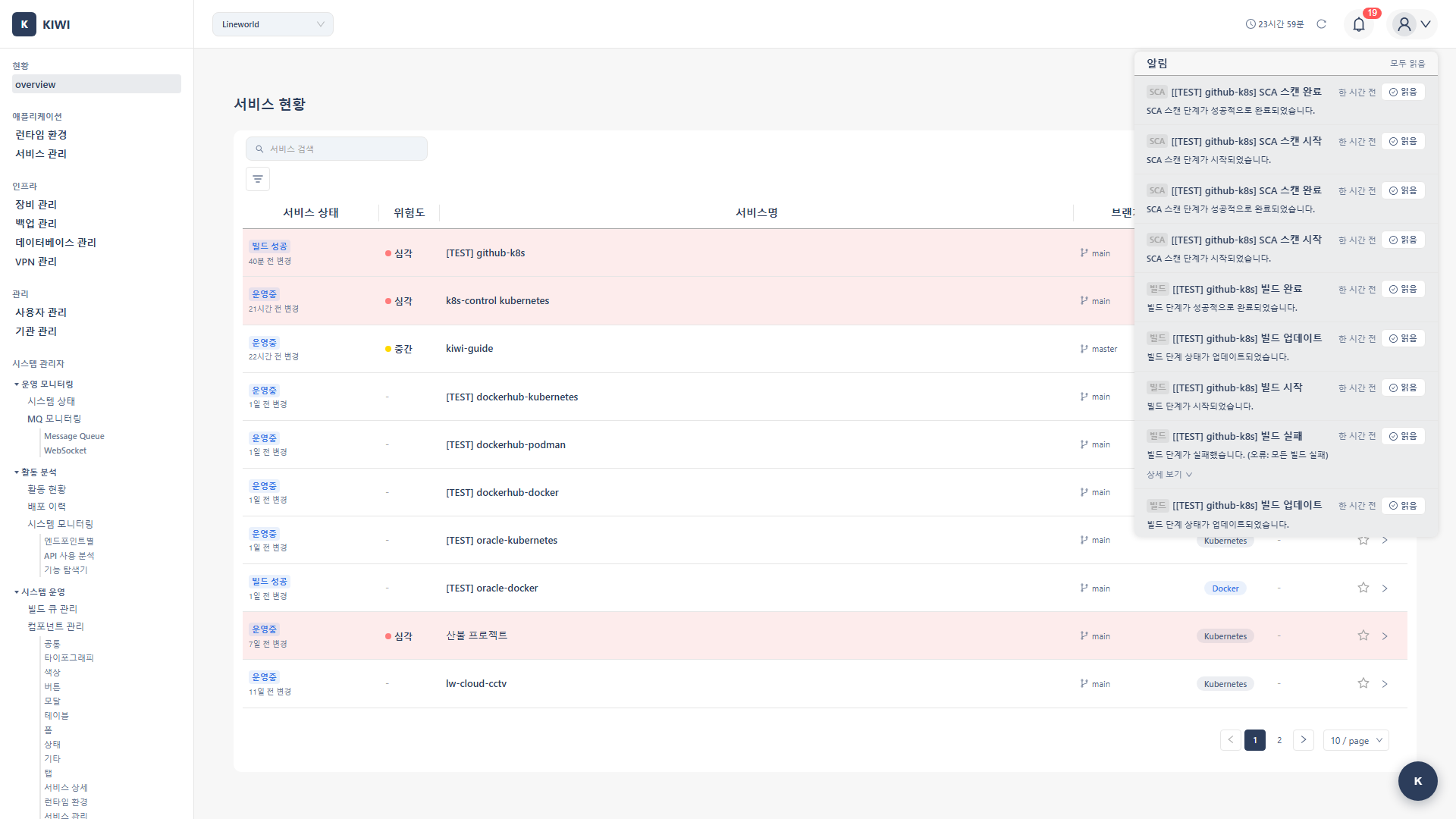
What you can do here
- Check notifications: The red badge on the bell icon shows the unread count; clicking it opens the notification panel. The list shows each notification's title, time, and read status, with unread items highlighted.
- Mark as read: Click an individual notification to mark it read, or use Mark All as Read to clear them all at once.
- Handle membership requests: An organization administrator can review the requester's info (name, email) on a join-request notification and Approve / Reject it. Approved members' permissions are adjusted on Permission Management.
- Request to join an organization: On the signup screen, choose Select Organization and submit; a membership approval request is sent to that organization's administrator.
Key elements
- Notification types (5):
membership_requestis a join request delivered to the administrator, andaccess_requestis an inquiry to access a locked feature.systemcovers notifications the system generates itself, such as pipeline progress, andothercovers the rest.pipelineexists only in the type definition — actual pipeline notifications are represented assystem+data.stage. - Action-button matrix: Buttons depend on the notification's
typeand handlingstatus— Approve/Reject buttons appear only onmembership_request(pending); everything else (access_request/system/other/ already-resolved) is mark-read only. - Notification/request status: Status values such as pending, read, accepted, rejected, and join-request statuses (Pending / Approved / Rejected) are documented in the Status Reference.
- Pipeline notifications: Emitted as a combination of an SDLC stage (source, SAST, build, SCA, deploy, operation, DAST) and a status (started / completed / failed). The per-stage codes and started/completed/failed wording are collected in the pipeline-stage notifications section of the Status Reference.
- Viewing failure details: Pipeline failure notifications store an
errorMessage. Expand the Show Details toggle on the entry to see a summary of the failure log, so you can quickly identify which stage failed and why.