Permission Management
Path: /permissions
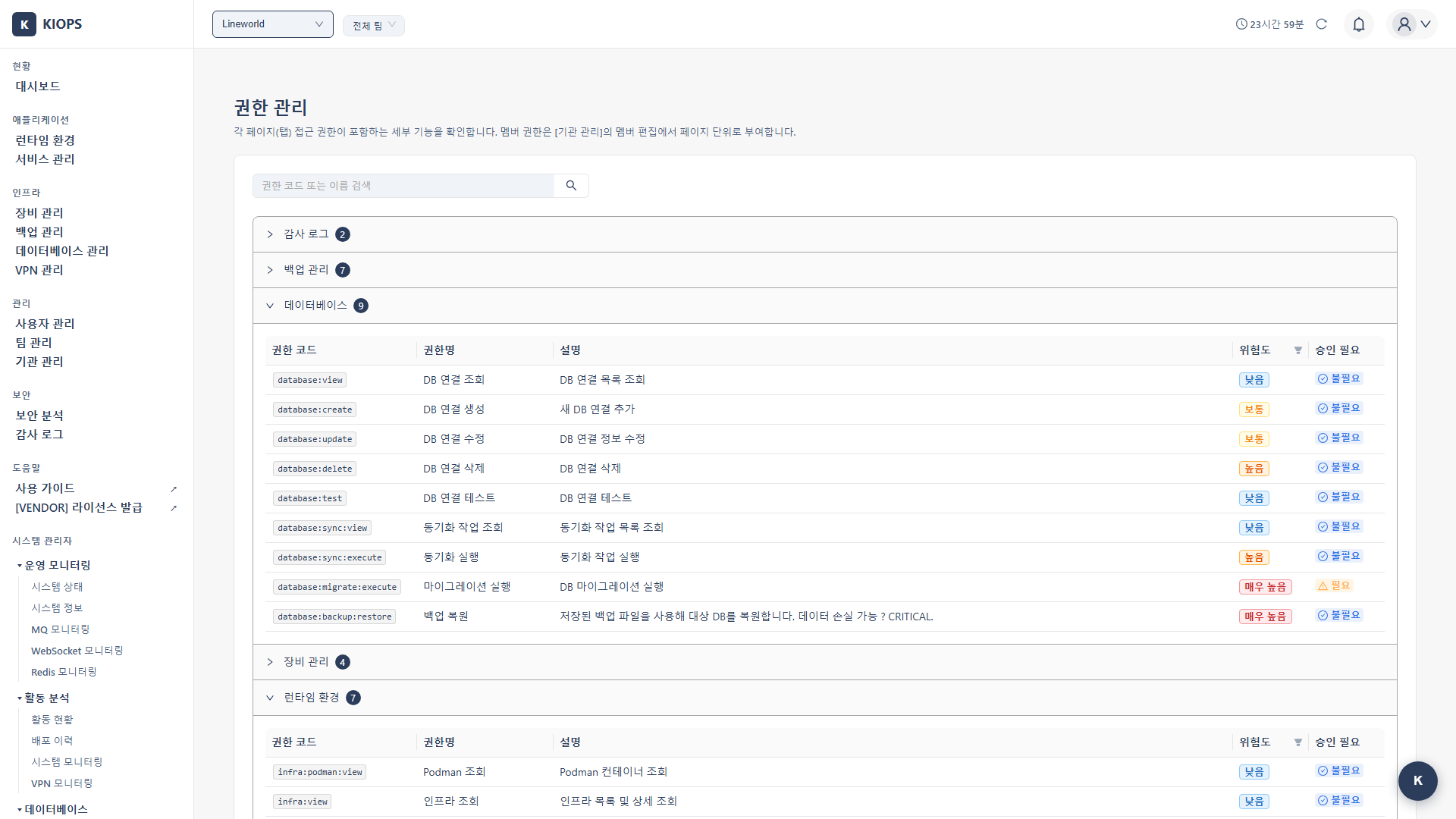
A read-only reference page for checking which detailed features each page access permission includes. Actual granting and revoking of member permissions is done from the member edit flow on the [User Management] page.
What you can do here
- Page access permission reference: View the detailed actions each of the 8 page permissions includes, with code, name, description, risk level, and approval-required status.
- Search: Enter a permission code or name in the search box to filter.
- You do not grant or revoke permissions here (granting is on the [User Management] page).
Permission model simplified (2026-07) — Permissions have been simplified into page (tab) level access permissions. The former action-level permissions (granting/revoking individual actions such as service:deploy:execute) have been removed, so now one page access permission = all actions on that page. The detailed codes and risk levels in the list below are reference information for checking which actions are included in each page permission.
Key elements
Permission categories (8, matching the sidebar menu)
- infra: Runtime environment registration, modification, deletion.
- service: Service build/deploy and Kubernetes/Docker/Podman operations (
service:operate:k8s:*, etc.). - security: Security Analysis. View/execute SAST/SCA/DAST/SBOM/IaC/secret/gate scans and manage the security gate.
- backup: Backup creation, recovery, deletion.
- device: Device registration, modification, deletion.
- database: DB connection, synchronization, restoration.
- vpn: VPN profile creation and deletion.
- audit: Audit log viewing and export.
Security Analysis was split into the standalone [Security Analysis] page (/security), which added the security category; the legacy service:security:* permissions are kept for backward compatibility. There is no separate "kubernetes" category — it lives under service as service:operate:k8s:* (Docker/Podman use the same structure).
Risk classification (4 levels)
- Critical: Irreversible changes / possible data loss. E.g.
service:delete,backup:restore,infra:delete,database:migrate:execute. - High: Direct changes to production. E.g.
service:deploy:execute,database:sync:execute,infra:create,*:exec,*:terminal,*:delete. - Medium: Daily operations. E.g.
*:create,*:update,service:build:execute. - Low: Viewing only, no data changes. E.g.
*:view,*:logs.
High-risk permissions (delete, restore, migrate, terminal, exec, etc.) can make irreversible changes, so grant them only to trusted users and review regularly.
Permission details
infra (Runtime Environment)
infra:view(Low): View runtime environment list and details.infra:create(High): Register new runtime environment.infra:update(Medium): Modify runtime environment settings.infra:delete(Critical): Delete runtime environment.
device (Device Management)
device:view(Low): View device list and details.device:create(Medium): Register new device.device:update(Medium): Modify device information.device:delete(High): Delete device.
service (Service Management) — Basic
service:view(Low): View service list and details.service:create(Medium): Register new service.service:update(Medium): Modify service settings.service:delete(Critical): Delete service (including all related data).
service — Build/Deploy
service:build:view(Low): View build history and logs.service:build:execute(Medium): Execute builds.service:deploy:view(Low): View deployment history.service:deploy:execute(High): Execute deployments (changes production).
service — Kubernetes operations
service:operate:k8s:logs(Low): View Pod logs.service:operate:k8s:restart(Medium): Restart Pods.service:operate:k8s:scale(Medium): Adjust Pod scale (change replica count).service:operate:k8s:exec(High): Execute commands inside containers.service:operate:k8s:terminal(High): Access container terminal.service:operate:k8s:manage(High): Direct K8s resource management (YAML editing, etc.).
service — Docker operations
service:operate:docker:logs(Low): View container logs.service:operate:docker:restart(Medium): Restart containers.service:operate:docker:exec(High): Execute commands inside containers.service:operate:docker:terminal(High): Access container terminal.service:operate:docker:manage(High): Docker resource management.
service — Podman operations
service:operate:podman:logs(Low): View container logs.service:operate:podman:restart(Medium): Restart containers.service:operate:podman:exec(High): Execute commands inside containers.service:operate:podman:terminal(High): Access container terminal.service:operate:podman:manage(High): Podman resource management.
security (Security Analysis)
security:view(Low): View security scan results (SAST/SCA/DAST/SBOM/IaC/secret/gate).security:execute(Medium): Execute security scans (SAST/SCA/DAST/SBOM/IaC/secret).security:gate:manage(High): Configure and manage the security gate (OPA) policy.- Legacy
service:security:view/service:security:executeare kept for backward compatibility only.
backup (Backup Management)
backup:view(Low): View backup list and status.backup:create(Medium): Create backups.backup:restore(Critical): Restore from backup (overwrites existing data).backup:delete(High): Delete backups.
database (Database)
database:view(Low): View DB connection list.database:create(Medium): Register DB connections.database:sync:execute(High): Execute data synchronization.database:migrate:execute(Critical): Execute DB migration.database:backup:restore(Critical): Restore data.
audit (Audit Logs)
audit:view(Low): View audit logs.audit:export(Medium): Export audit logs.
How to
Granting member permissions (Role + Page Access)
- On the [User Management] page, click the Edit Role/Permissions (pencil) button on the target member's row to open the [Edit Member Role and Permissions] modal.
- Select a role.
- Platform Admin / Organization Admin (Manager) / Team Manager (TeamManager): Automatically hold the permissions within their own scope, so an informational banner is shown instead of the page selection UI. Only a Platform Admin can grant Platform Admin, and on-premises that option is locked entirely.
- Member: Has only the page access permissions assigned below.
- For a Member, select allowed pages in the [Page Access Permissions] section via the 8 left (master) checkboxes. The right (detail) pane shows the description, available actions, and a Granted/Not-granted badge; at least 1 must be selected. Pages not included in your current license do not appear in the list at all (they are removed, not locked).
- Save. If the role or team also changed, the user must sign in again for the new permissions to take effect.
A page access permission includes all actions on that page (view, create, deploy, delete, terminal access, etc.) and cannot be limited to specific actions, so grant sensitive pages (Service Management, Runtime Environment, Backup Management) only to trusted members. For security, you cannot change your own permissions.
Checking included detailed features
On the [Permission Management] page, expand or search a page access permission group and review each action's permission code, description, risk level, and approval-required status.