Database Management
Path: /database
Connect external databases to KIOPS and manage synchronization, migration, and backup/restore from one place. If you cannot access this page, request Database Management permission from your organization administrator.
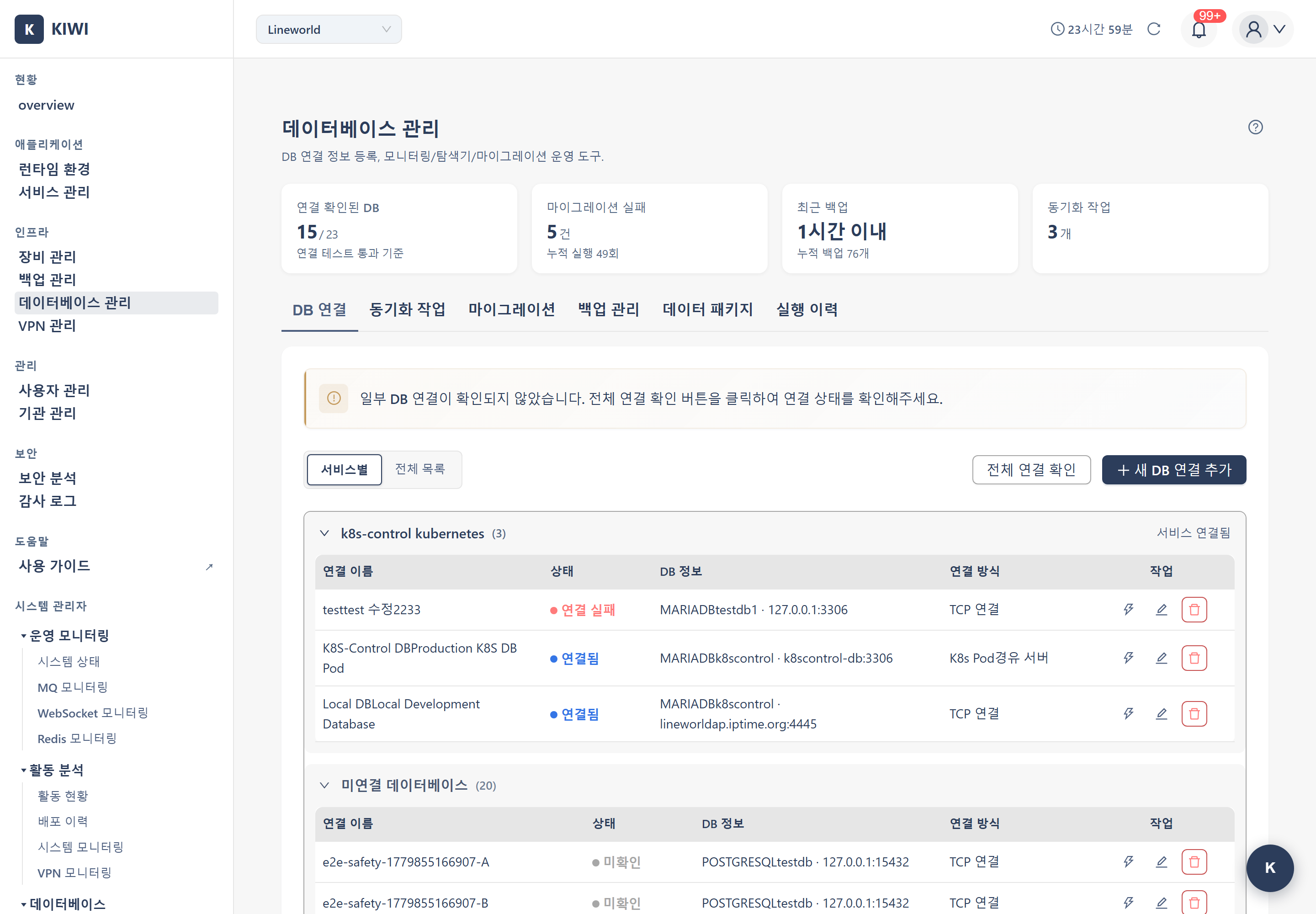
What you can do here
- Manage DB connections: Register and test multiple DB connections securely (passwords stored encrypted). For connection states, see the Status Reference.
- Synchronize: Repeatedly replicate data from a source DB to a target DB (e.g., copy production data to dev/test). Run once manually or automatically on schedule.
- Migrate: A one-time transfer of a DB to a different environment (sync is repetitive replication).
- Data Package: Upload SQL dump files you have into KIOPS, store them, and re-apply them to multiple environments.
- DB backup/restore: Back up DB data separately from infrastructure backups (etcd, Docker) and restore to a specific point in time.
Supported DBs: MySQL (5.7+) and MariaDB (10.3+) are primary and share the same driver (MySQL↔MariaDB compatible). The DB types selectable when registering a connection are MariaDB/MySQL/PostgreSQL.
Key elements
7 tabs: DB Connection · Sync Tasks · Migration · Backup Management · DB Backup Storage · Data Package · Execution History. The Sync Tasks, Migration, and DB Backup Storage tabs are only visible to users with the corresponding permissions. The top statistics cards show only four — DB Connections/Migration/Backup/Sync Tasks (Data Package excluded). For execution and connection states, see the Status Reference.
Connection method
- connection_type picks the infrastructure kind: direct (host:port, most cases) / kubernetes (DB in the same K8s cluster via
kubectl exec) / docker (container in the backend host's docker daemon viadocker exec). - SSH routing is not an on/off toggle in the connection form. It is auto-filled from a linked K8s/Docker service via Import service SSH, or entered through the access-method modal at the connection test step. When the target is covered by a VPN, a modal to choose the access method (VPN / Direct SSH) appears at that step. (There is no
connection_type='ssh'value.) - With SSH, write the DB host address relative to the SSH server (
localhostif on the same machine, otherwise that server's internal IP). Path:[KIOPS] → [SSH Tunnel] → [Jump Server] → [DB Server].
Migration (two Source Types)
- Registered DB connection (schema comparison): Compares source/target schema differences (tables, columns, indexes, FK) in table form and applies the source structure to the target. Both DBs must be connection-verified, and at least two are required. Toggling Backup before migration automatically backs up the target DB before running (recommended).
- Stored data package (one-time apply): Applies an SQL package from the Data Package tab to a target. Engine compatibility is checked automatically — only the same engine (including MySQL↔MariaDB) applies without conversion, and a cross-engine pair (e.g., MySQL→PostgreSQL) shows a "Cross-DB — migration not possible" warning with the Apply button disabled. Before applying, a preview (included tables, SQL kind) and a dry-run validation (runs in an isolated space, target unchanged) check for FK violations, syntax errors, and conflicts.
- The Migration tab has no SQL file upload. To import a new dump, use Upload SQL File on the Data Package tab.
Apply modes (when applying a package)
- New import (append): Applies CREATE/INSERT as-is (default, safe). May fail on PK/UK conflicts.
- Wipe and import (replace): Empties the target schema/data and fills it with the package content. Cannot be undone and is dangerous — choosing it forces an automatic backup before applying and goes through an extra risk-confirmation. Note that this automatic backup covers only SSH/K8s/Docker targets; for direct TCP targets the pre-apply backup is skipped and the replace proceeds without one, so back up manually first. For production DBs, backing up before applying is strongly recommended.
Data Package repository
A repository to upload and store SQL dumps you have (.sql/.sql.gz, up to 1 GB per file), then re-apply, download, or delete. The Upload SQL File button is the only entry point for importing a dump into KIOPS. Uploading only stores it — it is not applied at upload time. The columns are Name, DB Type, Size, Status, Created, and Actions. For status labels, see the Status Reference. The list refreshes about every 5 seconds while an apply is in progress, and again after each upload, apply, or delete (there is no manual refresh button). A .sql.gz file is decompressed automatically and stored and downloaded as .sql.
- 30-day retention policy: Import packages that have been applied to a target are auto-cleaned 30 days after the apply time (file deletion + deleted status). Ready-status packages (uploaded but never applied) and export packages are not subject to this. Download dumps you need long-term.
- 5GB quota per organization: Uploads/applies are rejected if the quota would be exceeded.
DB backup
Supports manual backup (immediate), scheduled backup (daily/weekly/monthly), and point-in-time restore. Retention can clean old backups by period or count (actual policy varies by environment). Restore can target a different DB than the original, and you choose delete-and-restore or merge for existing data. Since DB performance briefly degrades during backups and large DBs take a while, run production backups during off-peak hours (early morning).
How to
Register a DB connection
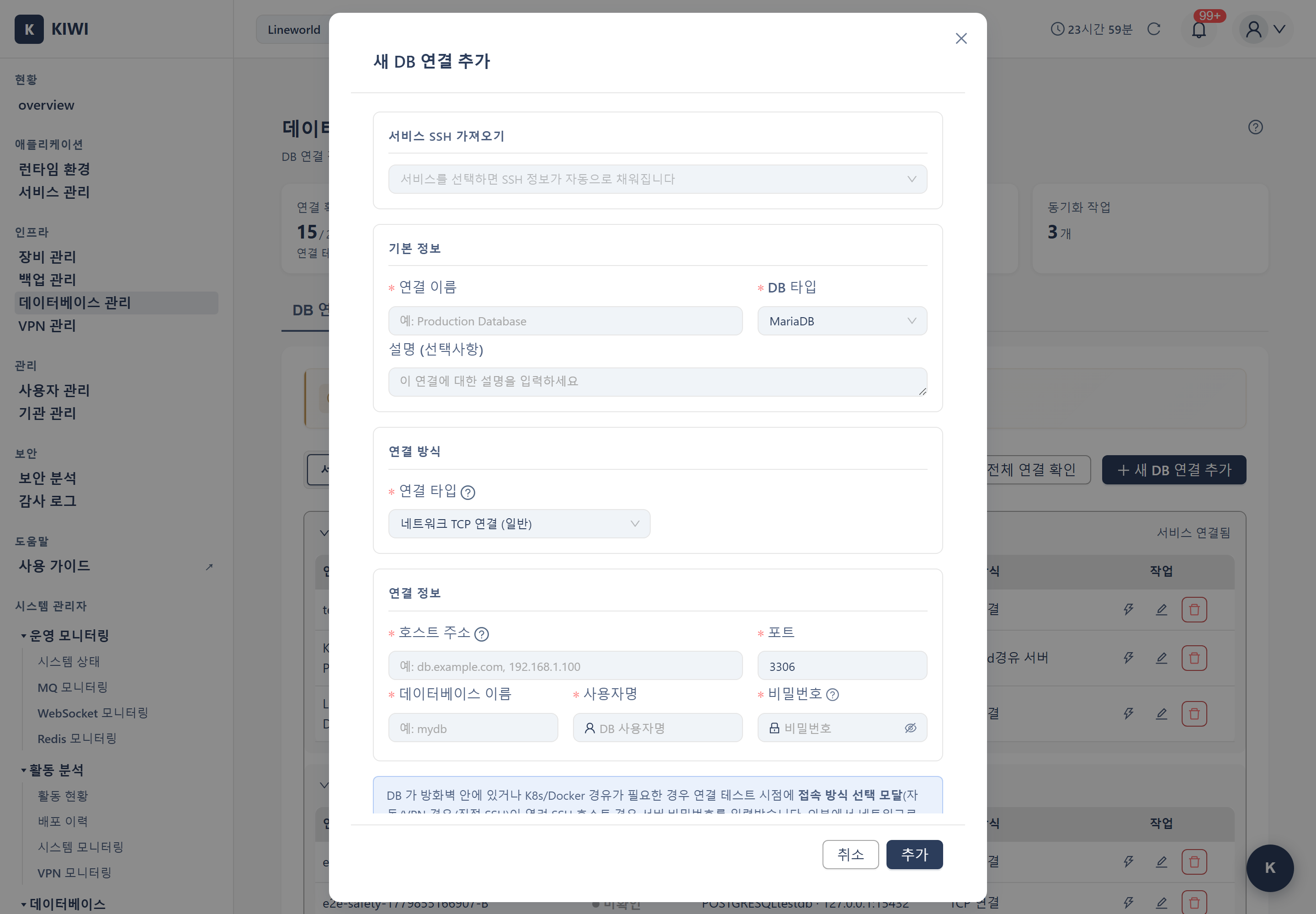
- On the DB Connection tab, click Add Connection.
- Enter the connection name, DB type, host, port, database (schema), username, and password. All of them are required.
- Once Test Connection succeeds, click Save.
The default ports are 3306 for MySQL and MariaDB, and 5432 for PostgreSQL. If the connection test fails, verify that the host, port, and account are correct, that the port is open on the DB server firewall, and that the DB user has remote-access permission.
Create/run a sync task
- On the Sync Tasks tab, click Add Task.
- Select the source and target DB, then choose a full or selective sync.
- Choose conflict resolution. Source-first overwrites the target, so target data can be lost; Target-first keeps the target as it is.
- Set the schedule: every N hours, daily at a fixed time, or cron.
The cron format is minute(0-59) hour(0-23) day(1-31) month(1-12) weekday(0-6, 0=Sunday). For example, 0 3 * * * is daily at 3 AM, 0 */6 * * * is every 6 hours, and 0 0 * * 0 is every Sunday at midnight.
To run a task immediately, click its Run button. A sync changes target data and large tables take a while, so run production syncs in the early morning.
Always test before applying to production. Source-first overwrites target data, which can cause data loss.
Use data packages
- Upload (store only): On the Data Package tab, click Upload SQL File and select a
.sqlor.sql.gzfile. It uploads immediately (up to 1 GB). - Apply: Click the row's Apply button, then select the target DB and apply mode (default append) in the modal. Enter the passwords (target/SSH/Jump), and progress is shown by the status tag.
- Download: Saves to your local PC. Use it for long-term archiving or for moving a package to another environment.
- Delete: Permanent, after the confirm popup.
Requesting a dump file — If creating a dump (pg_dump/mysqldump) yourself is difficult, ask the source DB's IT contact or DB administrator, then upload the .sql/.sql.gz you receive.
Run a migration
In the Migration tab, choose a Source Type, then proceed.
- (1) Compare registered DBs: select source/target → enable Backup before migration (recommended) → Compare Schemas → when differences are found, Run Migration. A data-loss warning appears if the target has tables that already hold data.
- (2) Apply a stored package: select package/target → confirm engine compatibility → preview/dry-run (optional) → choose apply mode → Apply Package.
Large migrations take time and can affect service. Run production migrations during a maintenance window, and always enable Backup before migration.
DB backup and restore
Backup Management tab → Create Backup (select target DB, name, included items) or Schedule Settings (frequency, retention policy). To restore, use the Restore button in the backup list → select target DB and existing-data handling → Start Restore.
Restore modifies existing data in the target DB. Always back up the current state before restoring in production.
Diagnose failures
Click a failed operation in the Execution History tab to inspect the detailed error. The common causes are:
- Connection failure: a network or firewall problem.
- Permission error: the DB user lacks privileges.
- Schema mismatch: the structures differ. Run migration validation first.
- Insufficient space: the target server is out of disk.
For cross-DB constraints, see the Considerations When DB Types Differ guide.