Runtime Environments
Path: /runtimes, /runtimes/:infraId
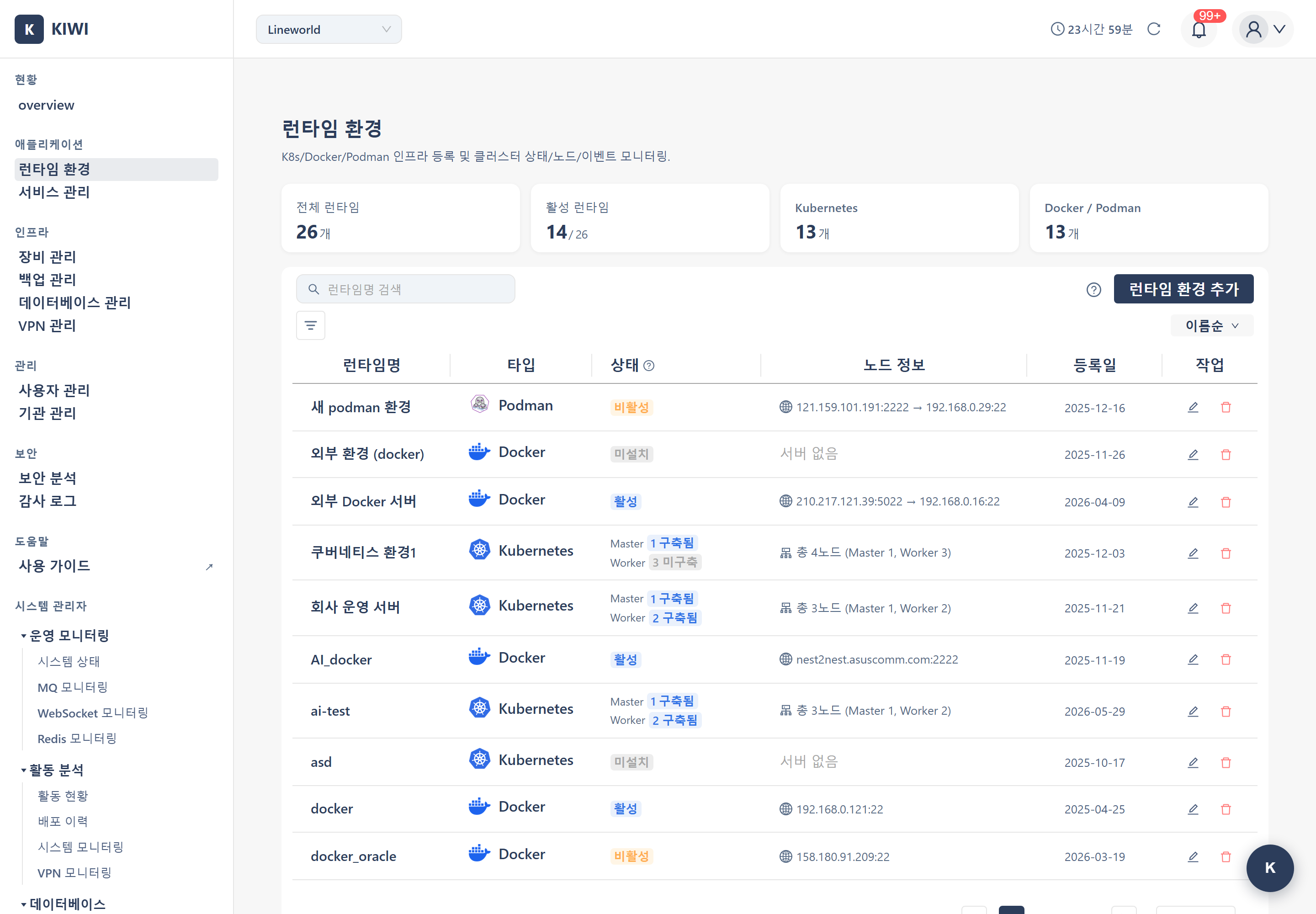
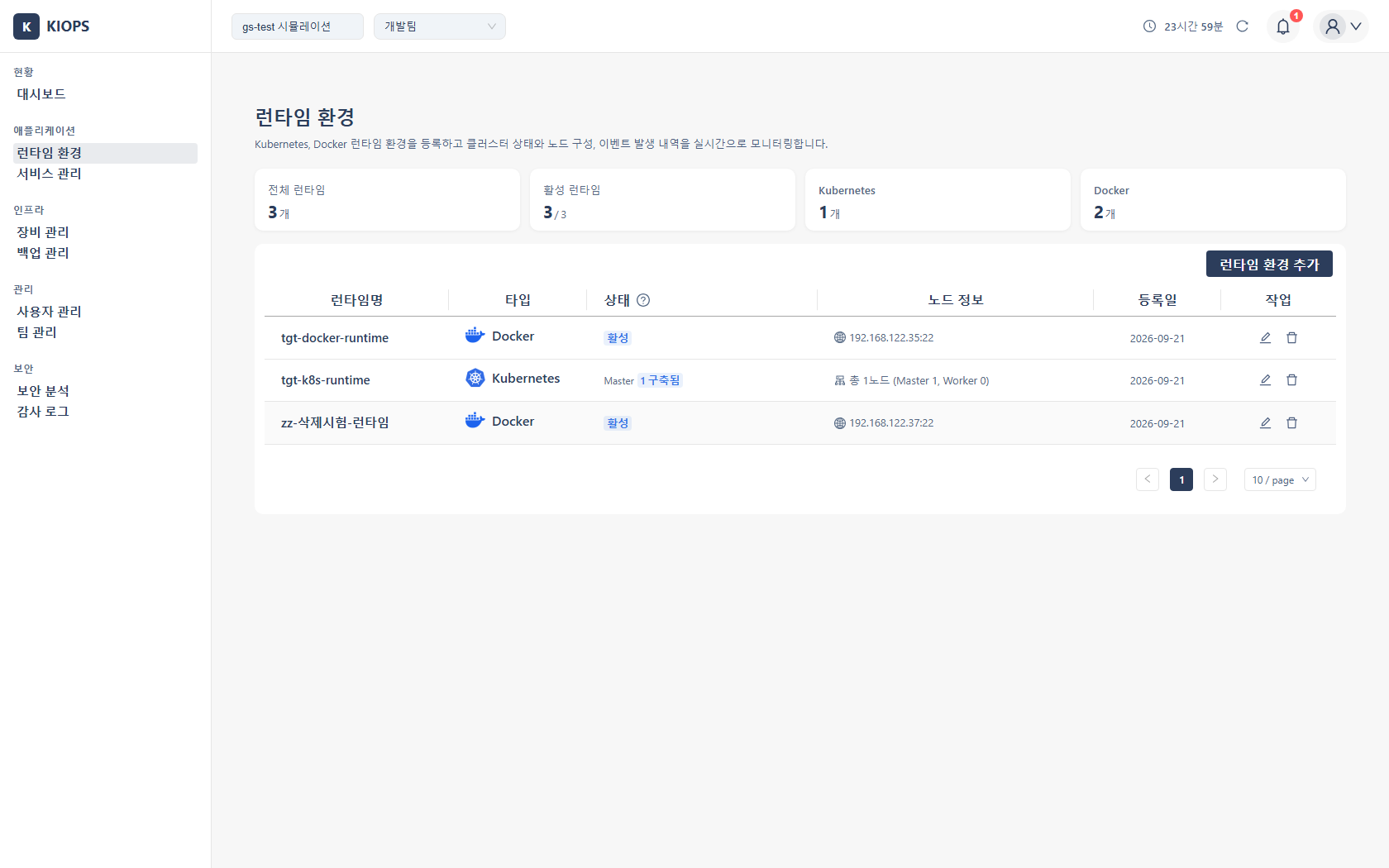
Register and manage the infrastructure environments where your services actually run — Kubernetes clusters, Docker hosts, and Podman.
Permission Notice — If you cannot access this page, request Runtime Management permission from your organization administrator.
Getting Started? — First register your servers on the Device Management page, then set up runtimes here.
What you can do here
Register separate dev/staging/production environments, monitor each runtime's resource usage, and centrally manage multiple clusters and hosts. Three supported runtimes:
- Kubernetes: Auto-scaling, rolling updates, self-healing. Recommended for large-scale production.
- Docker: The most widely used, simple and intuitive runtime. Recommended for development, small services, and single-host deployments.
- Podman: Docker-compatible and runs without root privileges (rootless). Recommended for security-critical environments.
Key elements
Features by runtime type
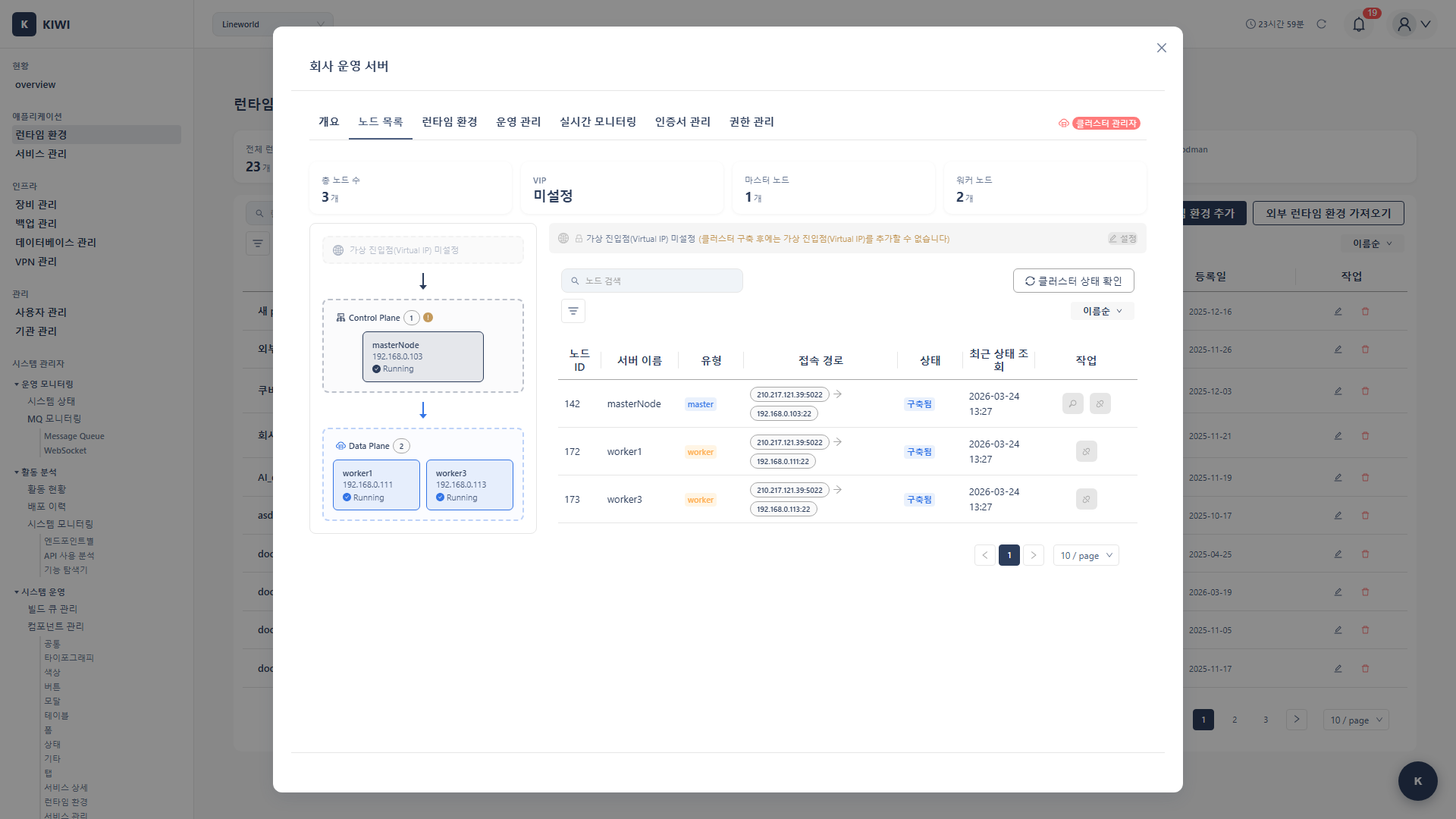
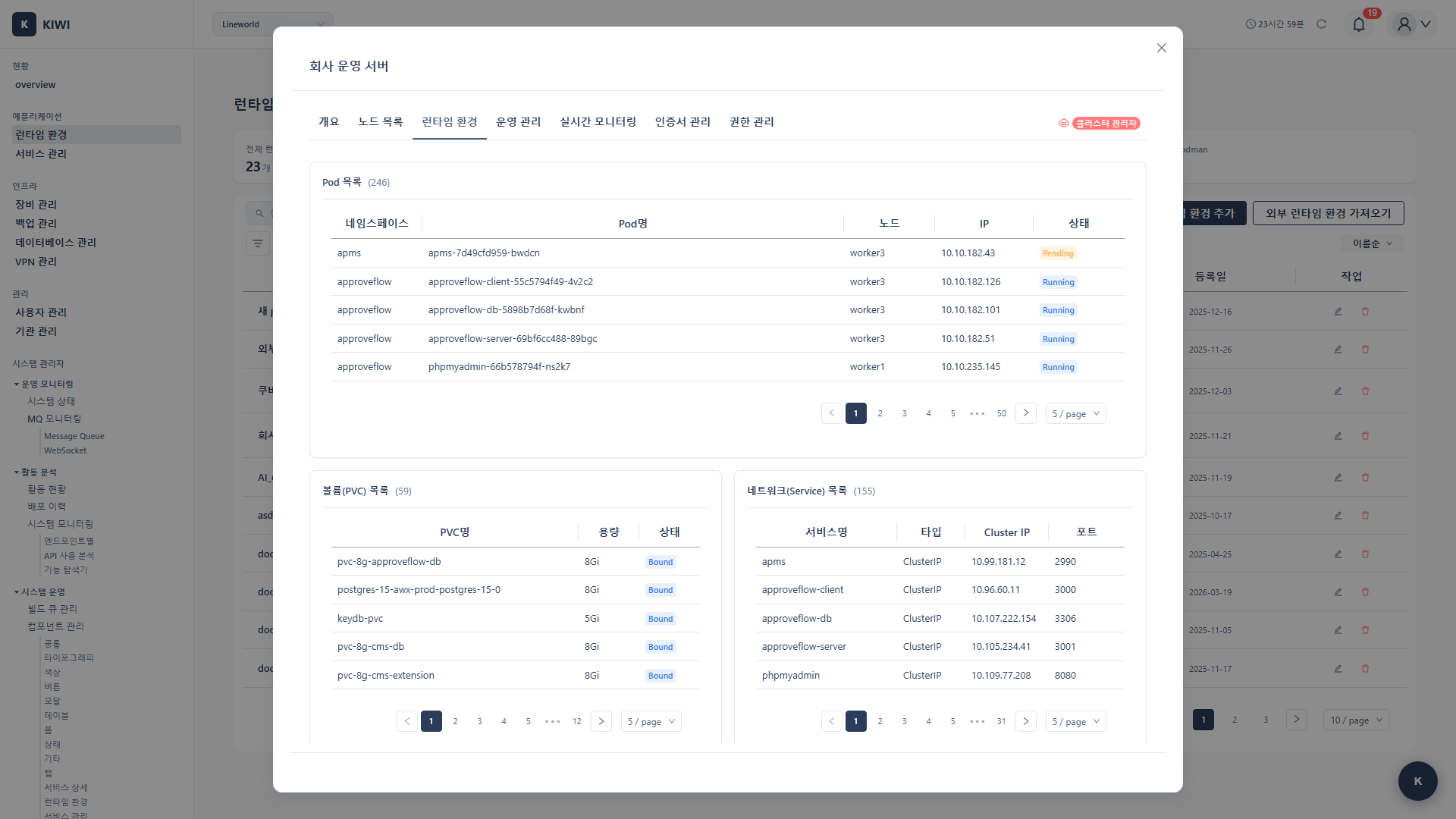
- Kubernetes: Node status monitoring (Ready/NotReady), namespace management (logical resource separation), and resource usage (no separate installation required).
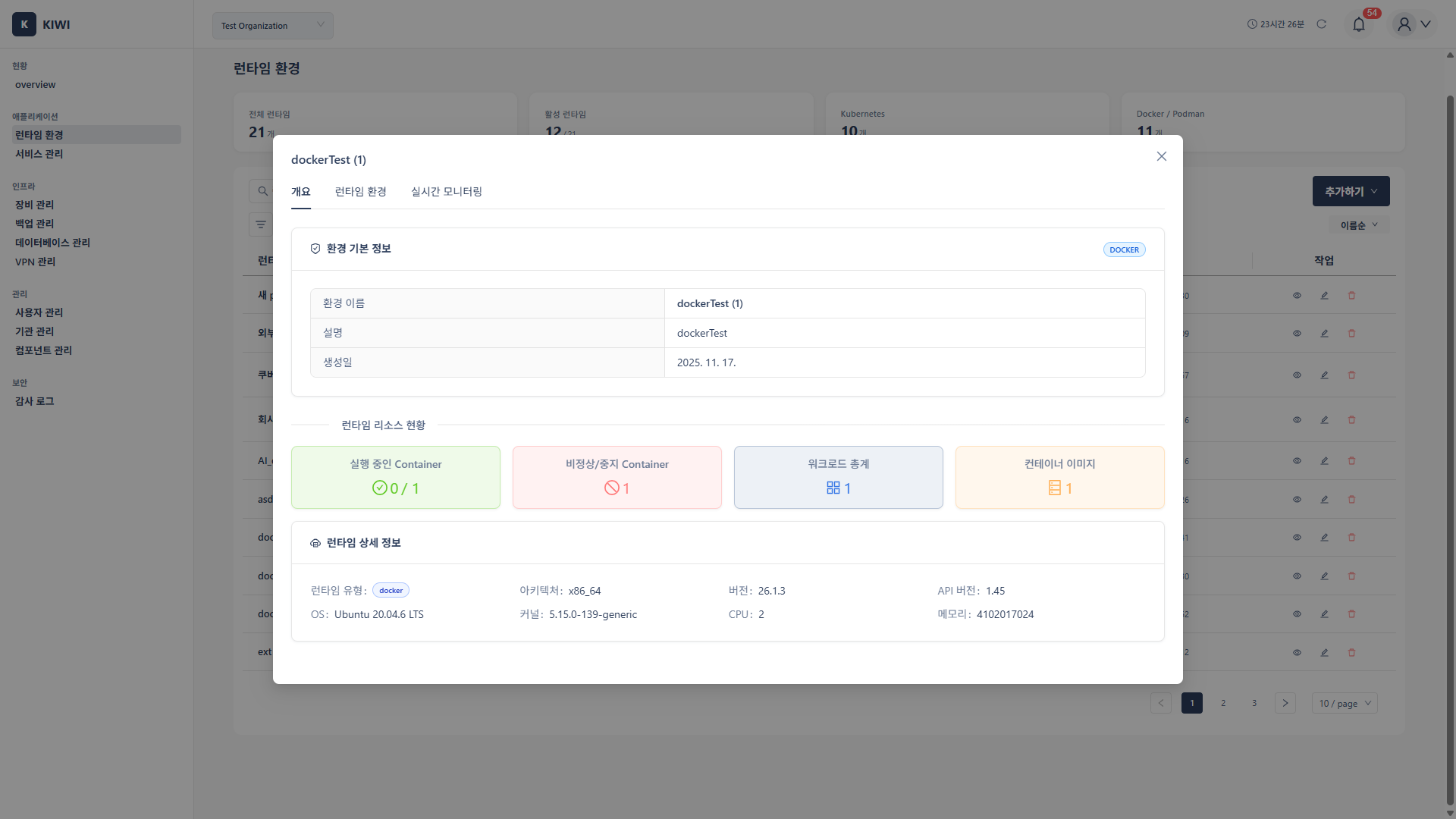
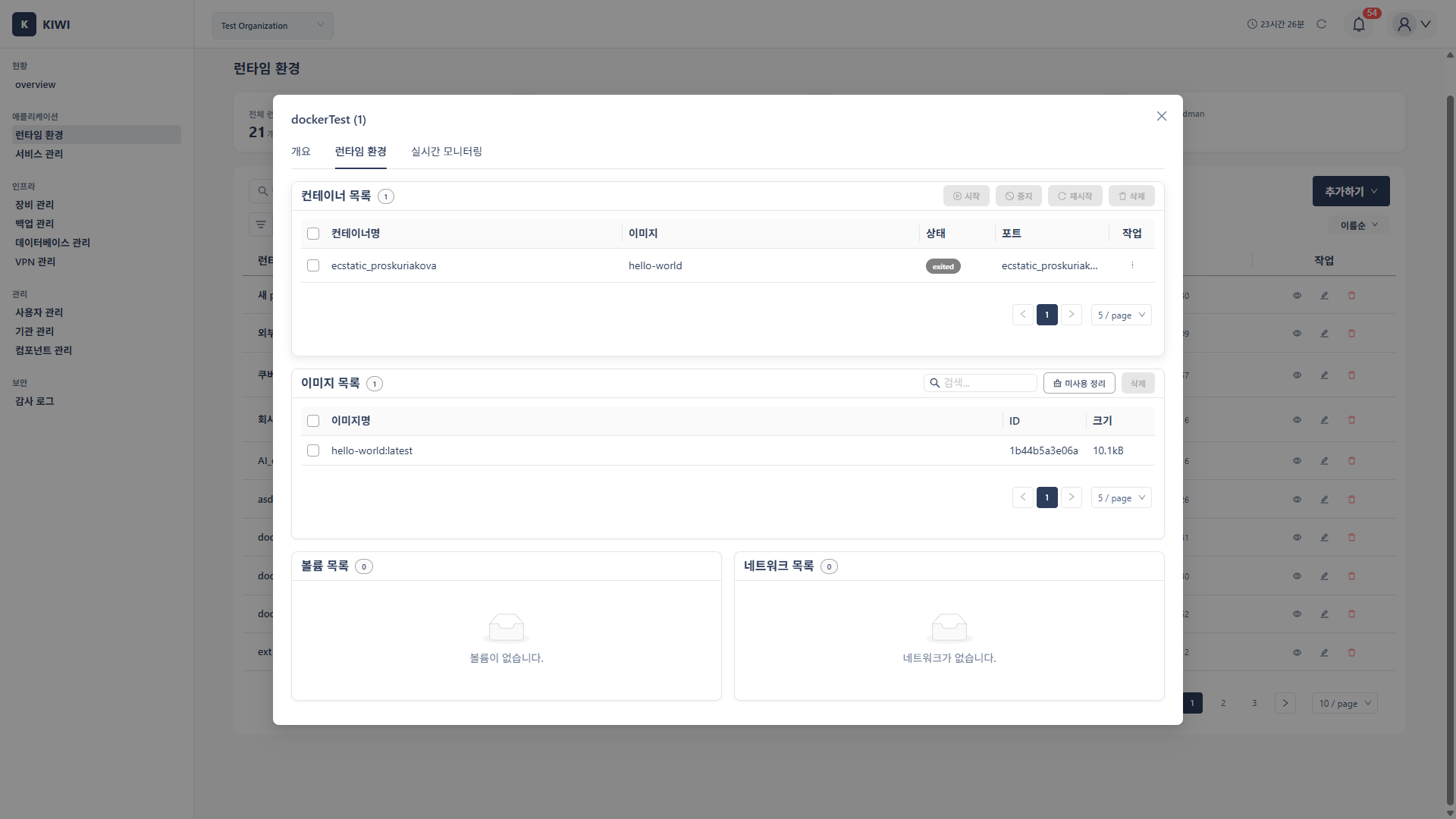
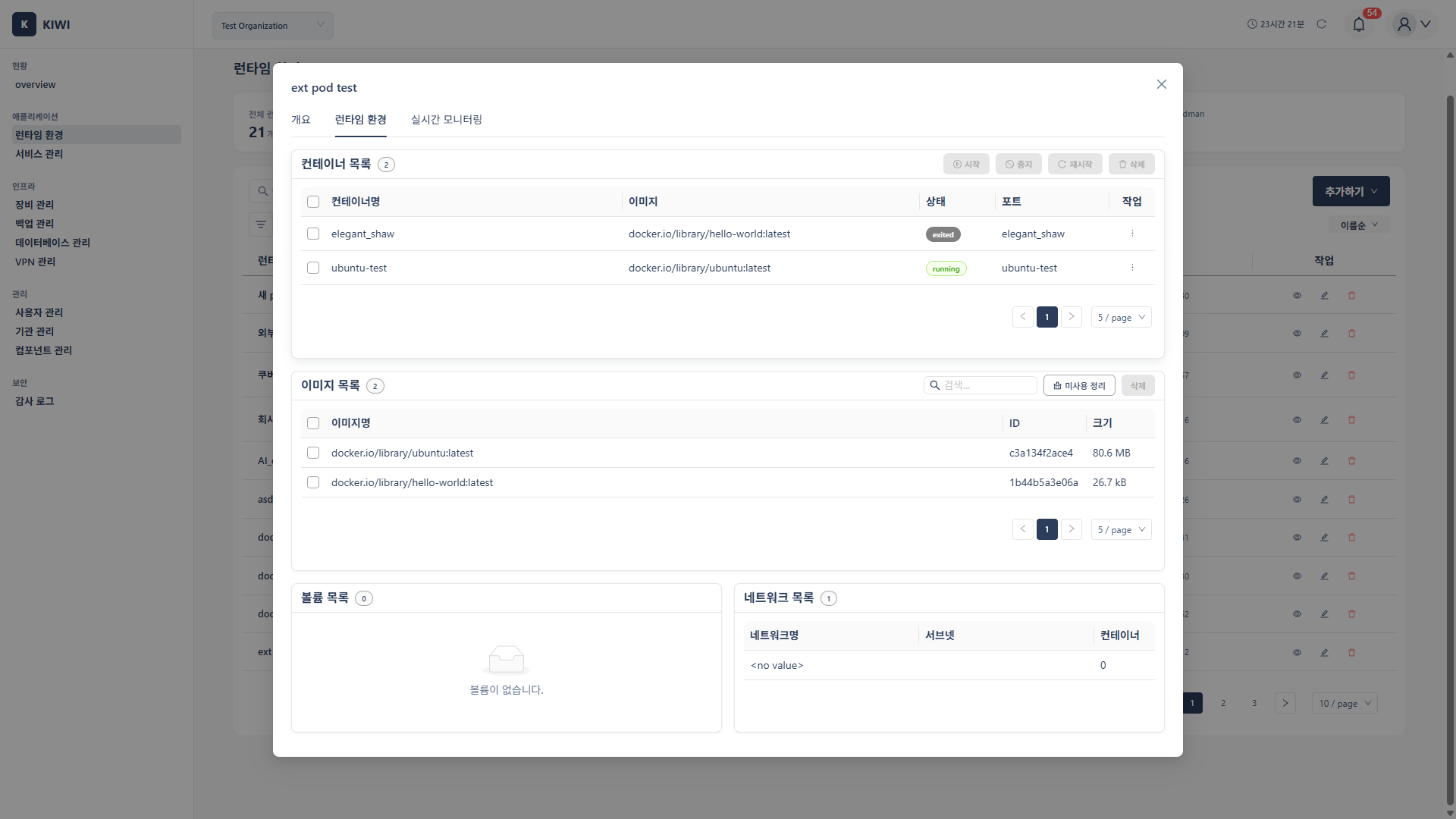
- Docker/Podman: Container management (start/stop/restart), image management (clean up to free disk), volume management.
Runtime list
Shows each registered runtime by name, type (Kubernetes/Docker/Podman), node count (K8s), and health status (see the Status Reference for status values). Click the name for details, the gear icon to change settings, or delete to unregister.
Detail page tabs
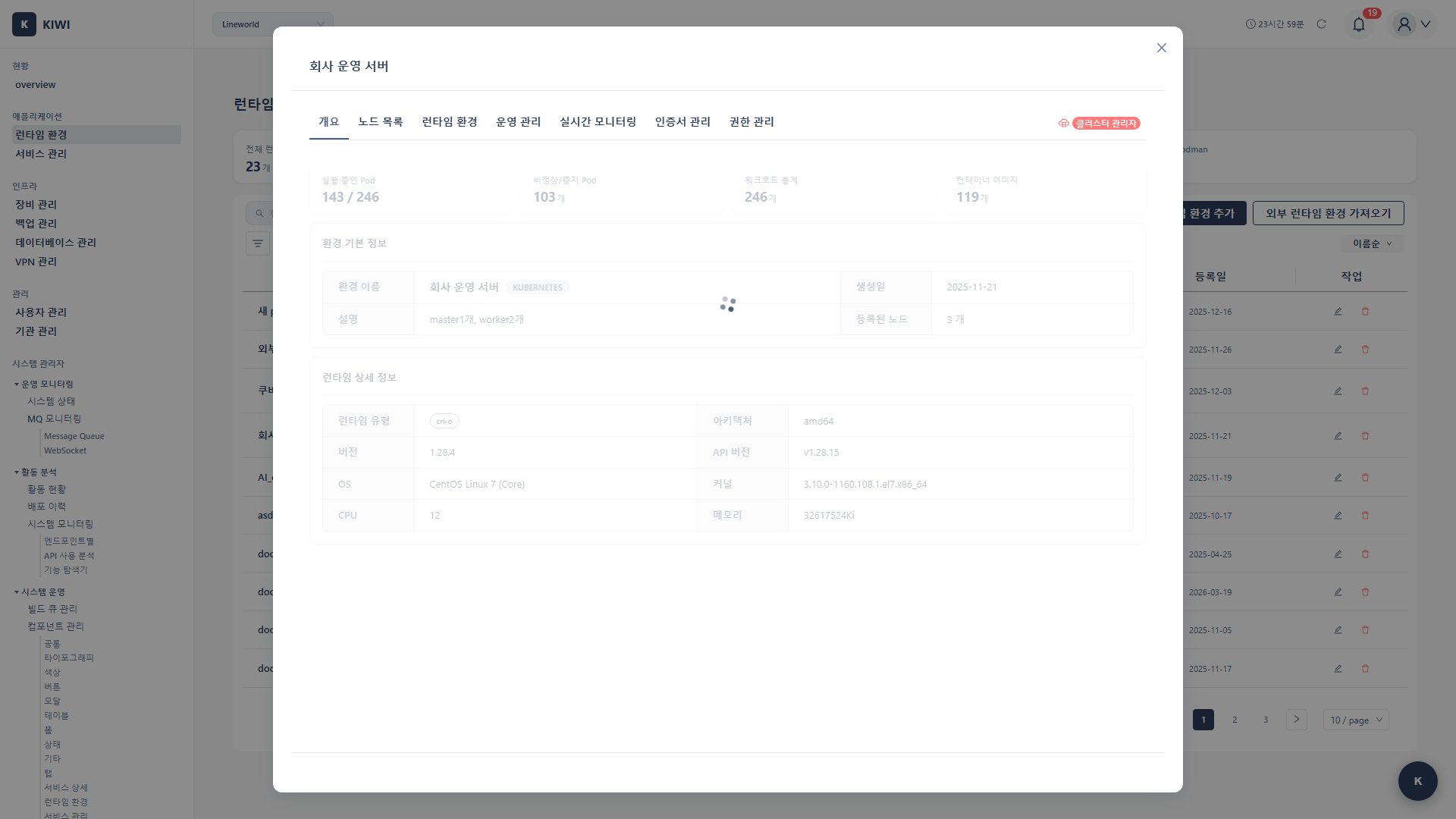
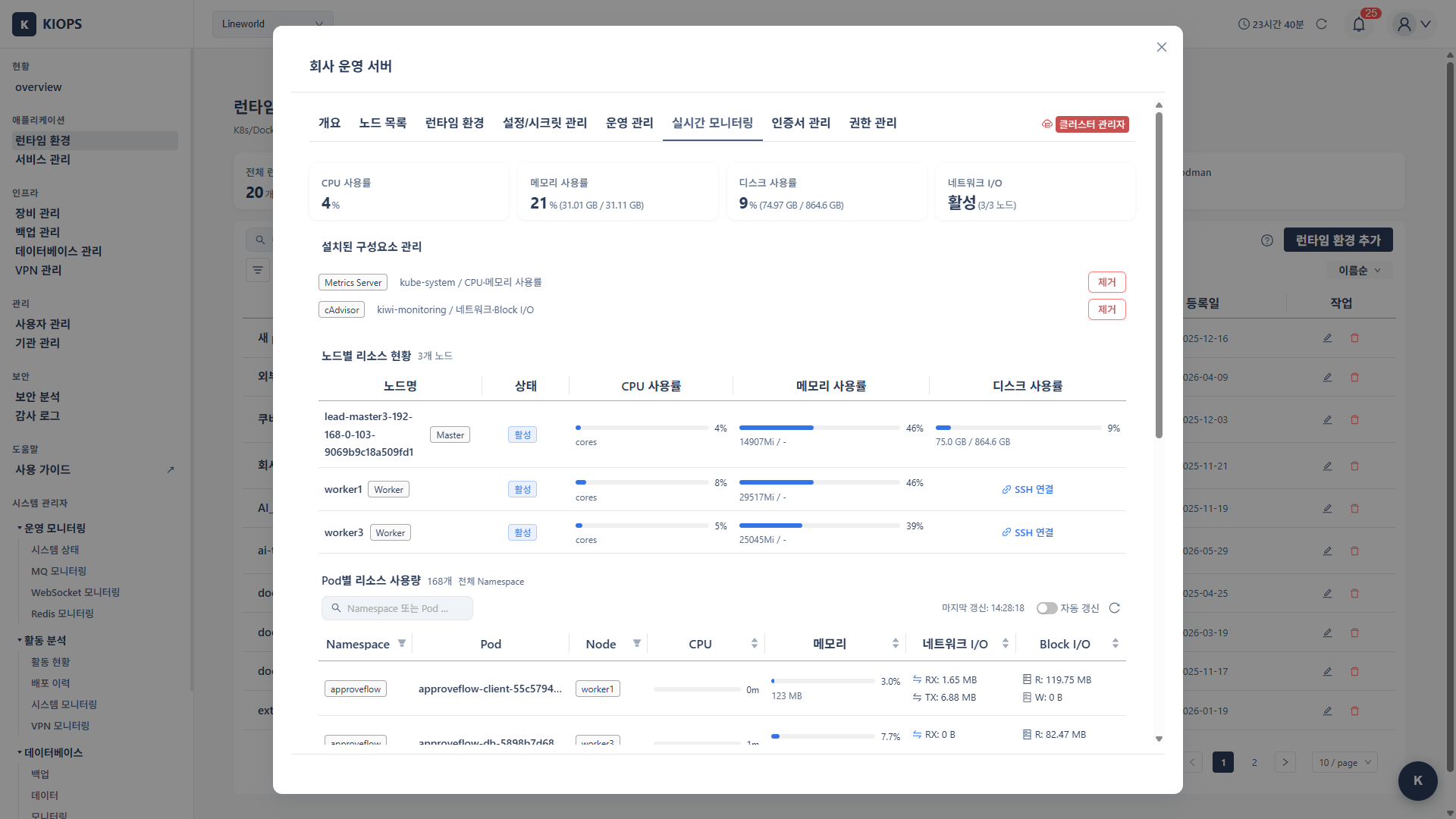
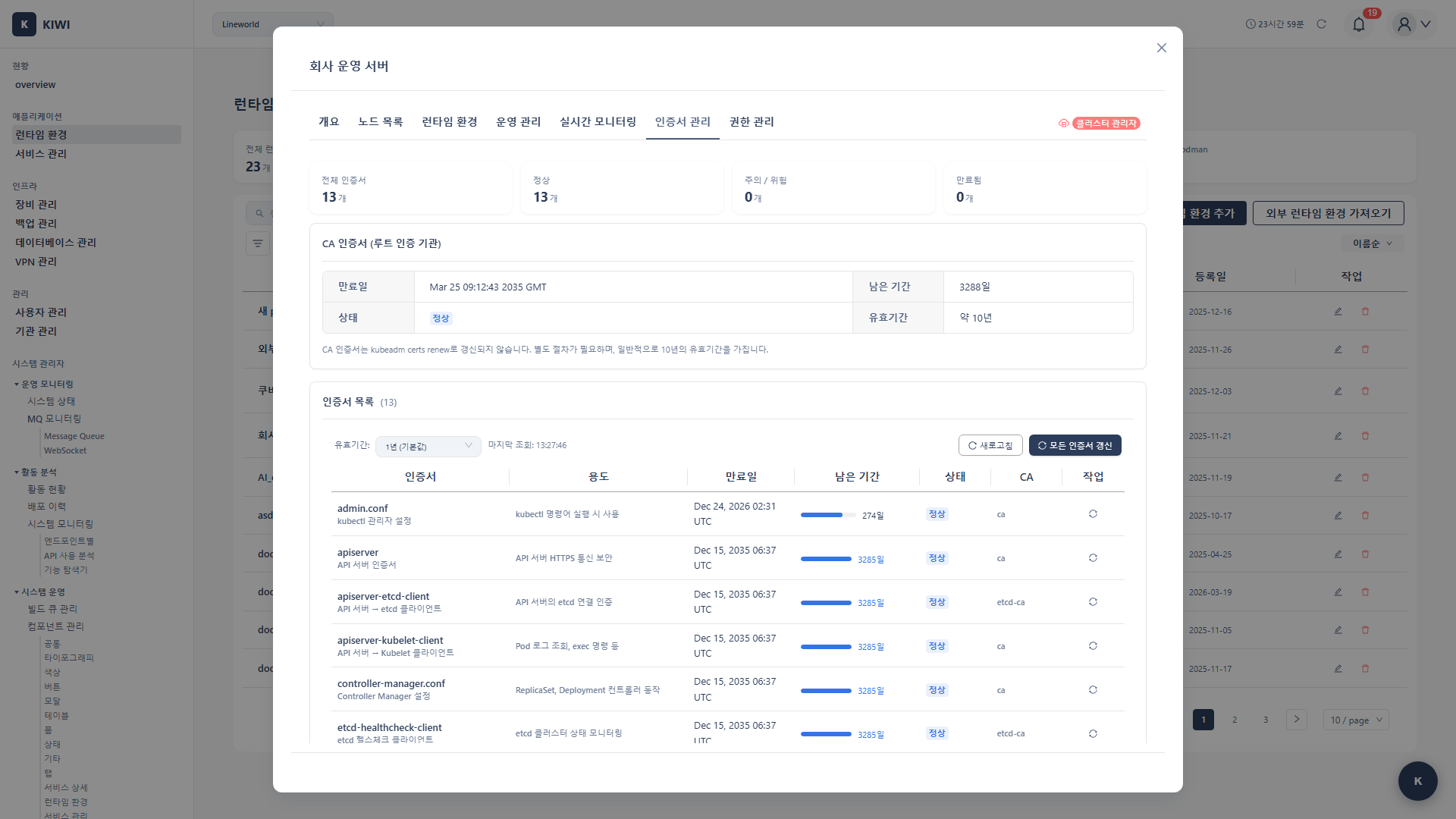
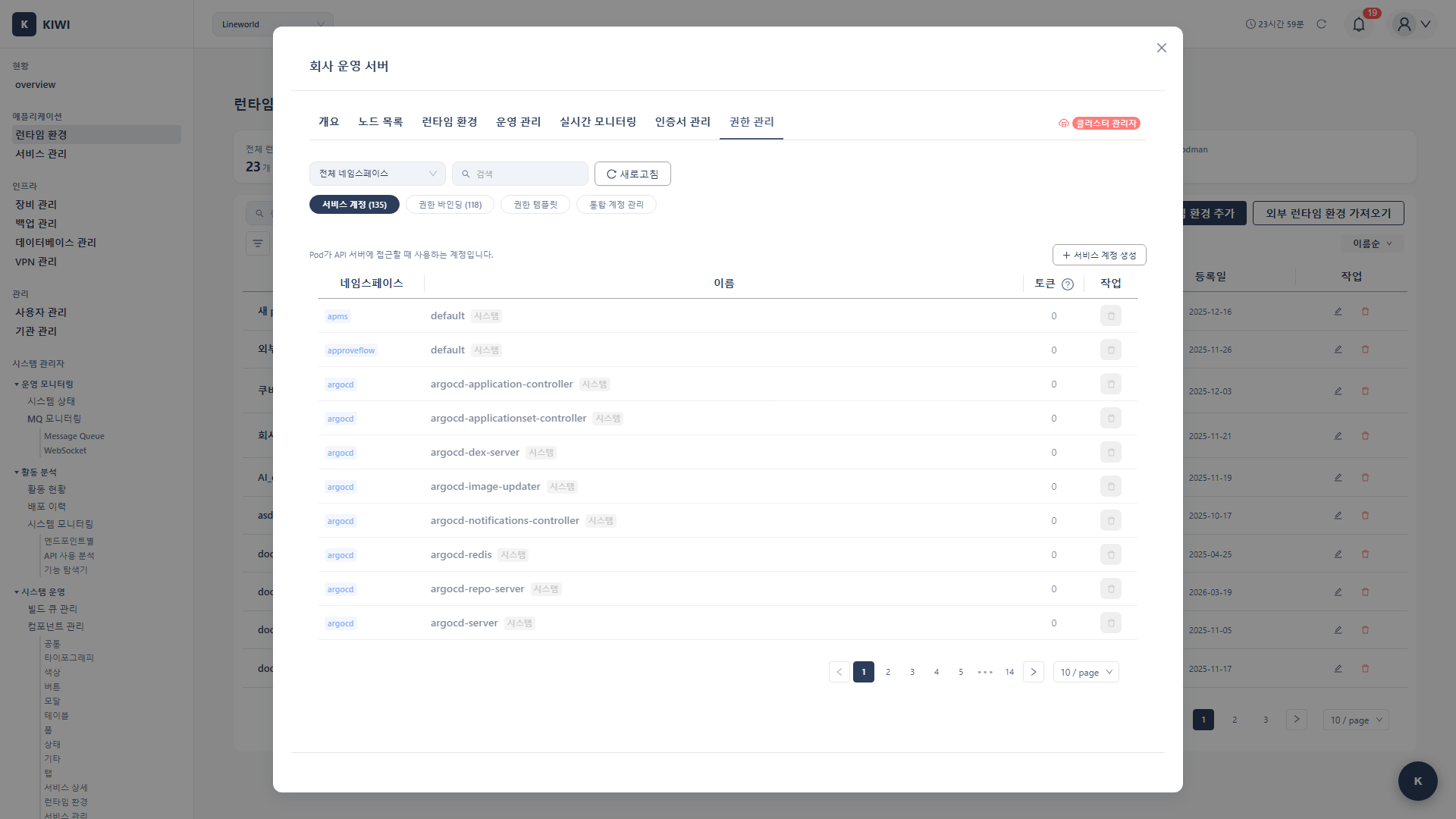
- Kubernetes (7 tabs): Overview / Node List / Runtime Environment / Config·Secret Management (view/edit ConfigMaps and Secrets per namespace, requires management permission) / Real-time Monitoring / Certificate Management / Permission Management (RBAC).
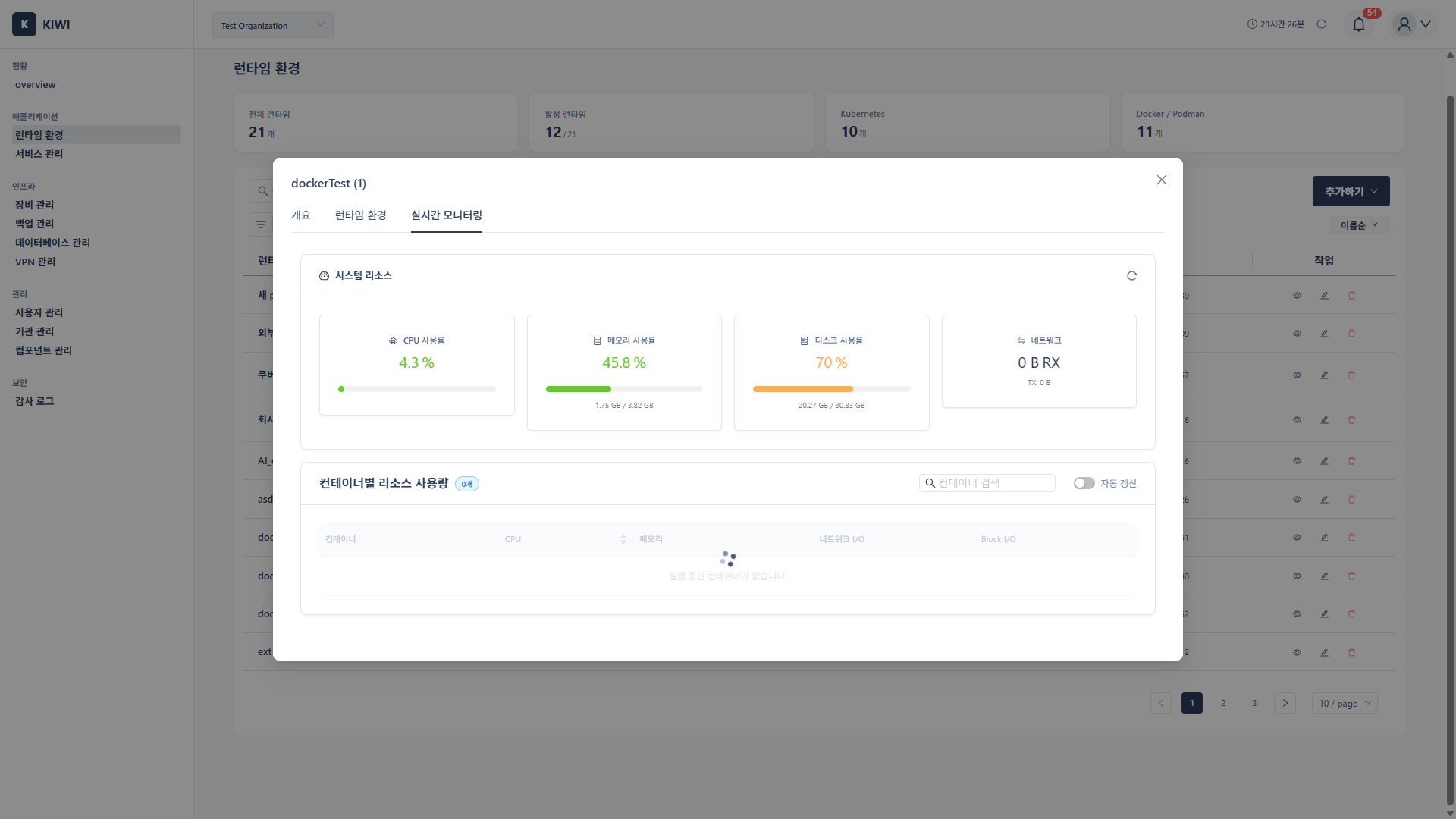
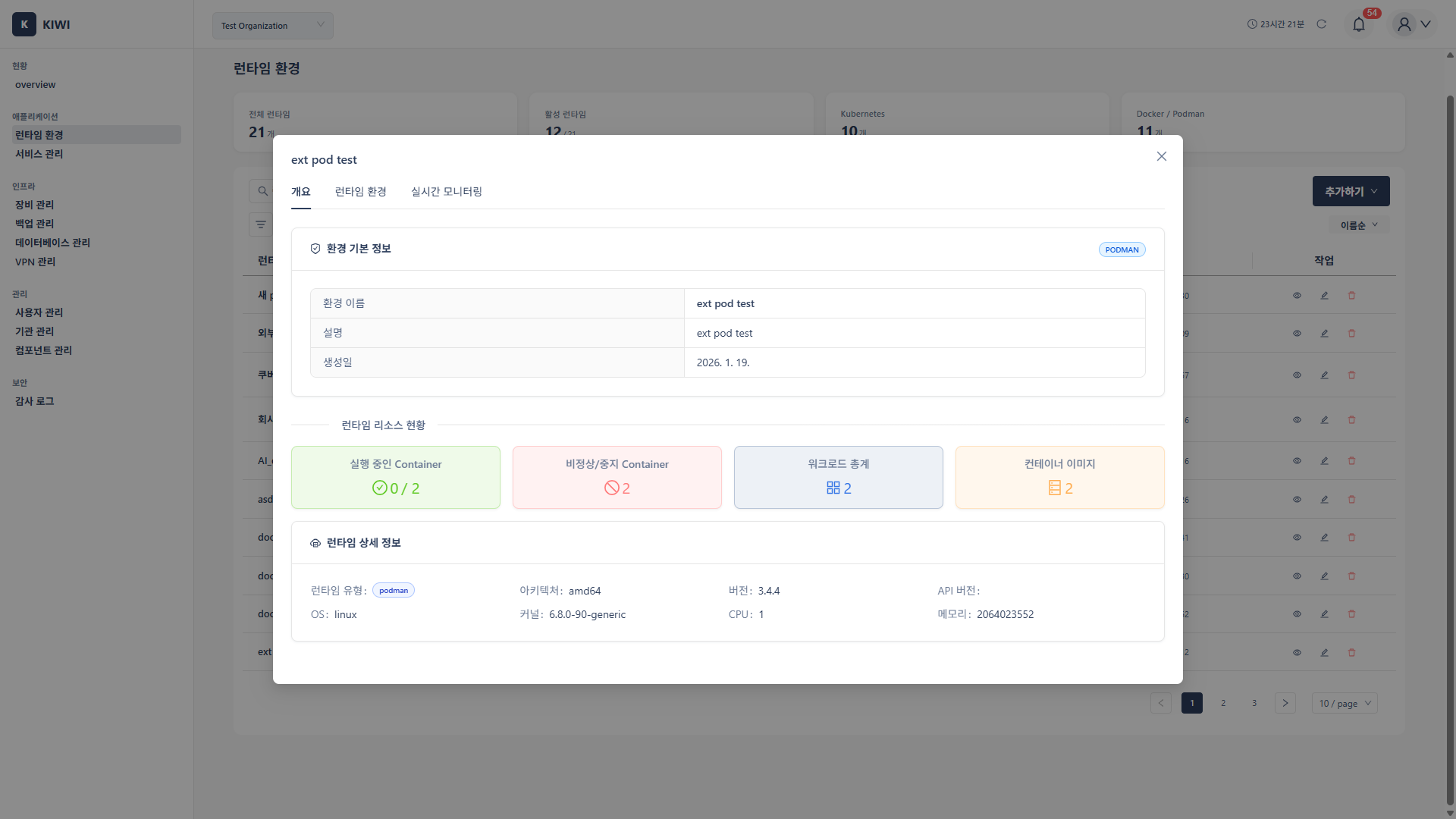
- Docker·Podman (3 tabs): Overview / Runtime Environment / Real-time Monitoring.
How to use
Register a Kubernetes cluster
An internal cluster is one KIOPS manages, with Kubernetes running on a server registered in Device Management. Go Add Runtime → Kubernetes → Internal Cluster, then select the master-node device. The kubeconfig is detected automatically; if it is not, enter the path manually (default ~/.kube/config). Finish with Test Connection, then Save.
An external cluster is an existing EKS, GKE, or self-built cluster you connect to. Go Add Runtime → Kubernetes → External Cluster. If the cluster is covered by a VPN, the connection method modal appears; with a single path it connects directly. Then upload or paste the kubeconfig, and select a context if there is more than one. Finish with Test Connection, then Save.
The kubeconfig file contains cluster access credentials. If leaked, it allows unauthorized access, so manage it securely.
Register a Docker / Podman runtime
Go Add Runtime → Docker (or Podman), select the host device, verify the socket path, then finish with Test Connection and Save. The default socket path is /var/run/docker.sock for Docker (tcp://192.168.1.100:2375 for a remote host) and /run/podman/podman.sock for Podman.
Pre-connection checklist — Kubernetes needs network access to the API server (default port 6443), and Docker/Podman need read/write permission on the socket file.
Viewing Resource Usage (Kubernetes)
CPU, memory, network, and disk usage for nodes and Pods is shown under K8s detail → Real-time Monitoring tab. KIOPS reads the kubelet's built-in metrics directly, so there is no installation step. HPA separately requires metrics-server in the cluster — see Pod Resource Metrics.
Quick access to common features
- Change runtime settings: list → the target runtime's gear icon.
- Connect external Kubernetes: Add Runtime → Kubernetes → External Cluster.
- Renew certificates: K8s detail → Certificate Management tab → Renew the target certificate.
Connection method (VPN / Direct SSH)
Whenever an SSH-backed operation begins — runtime registration, connection tests, importing an external cluster, deployments, operations — KIOPS evaluates the target's access path. If there is only one path, it connects directly; if both direct and VPN are possible, the connection method selection modal appears.
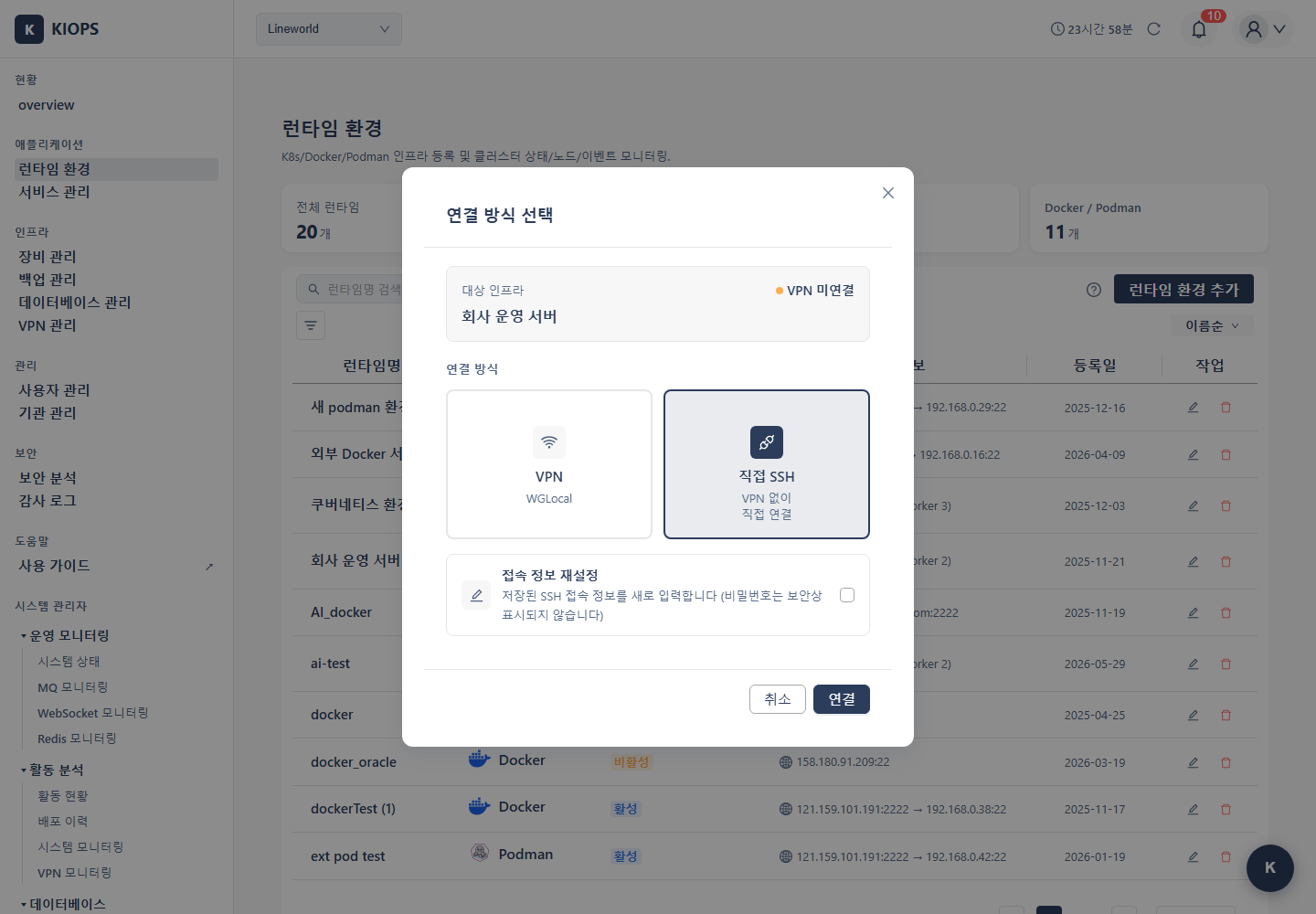
- VPN: Connect through the VPN tunnel. If no active session exists, a quick-connect modal opens automatically; if the target IP is outside the VPN's AllowedIPs, an error message is shown (VPN is preselected if an active session exists when the modal opens).
- Direct SSH: Connect without VPN, using the registered multi-hop chain (jump server → target) as-is.
The former Auto / VPN / Direct SSH three modes have been consolidated into just VPN / Direct SSH.
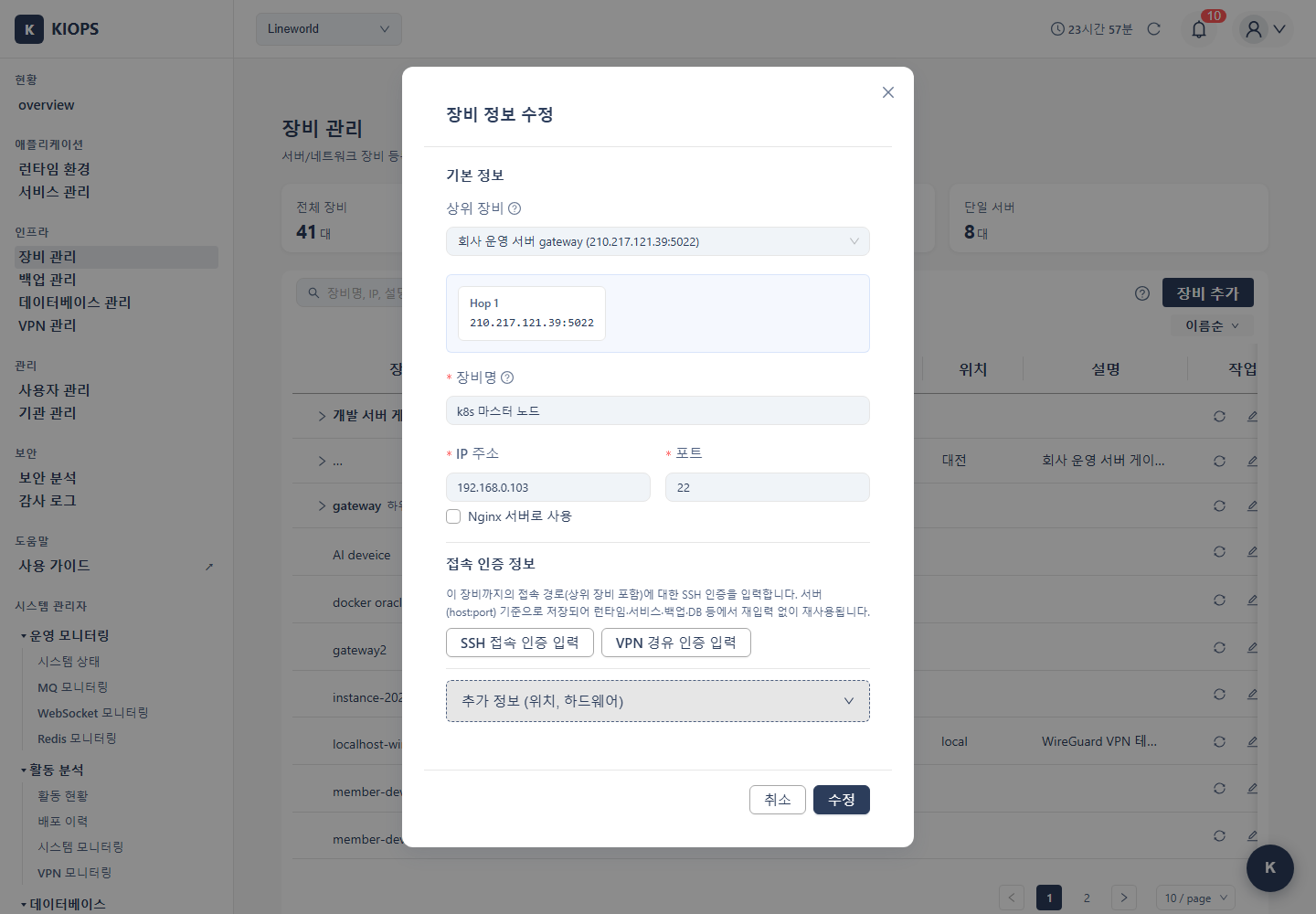
If stored SSH credentials exist, the server injects them automatically, so the connection proceeds without input. If missing or incorrect, KIOPS redirects you to that device's edit screen in [Device Management] to fix authentication (the single place to manage credentials); for not-yet-registered targets or some wizard flows, the inline Remote Access Settings modal lets you enter host, port, username, and authentication method (password/SSH key) on the spot. Credentials you enter are stored encrypted on the KIOPS server — not in the browser — and auto-reused next time.
With an active VPN session the jump-server hop is bypassed automatically — When a VPN session is active and the target IP is within the VPN's AllowedIPs, KIOPS strips the registered jump-server hop and connects using only the target server (or API Server) SSH information. Even when registering an external cluster, you don't need to provide jump-server details or an SSH tunnel host — the VPN itself takes the gateway role. For the underlying behavior and endpoint-match condition, see VPN Settings → Connection Method.