User Management
Path: /users
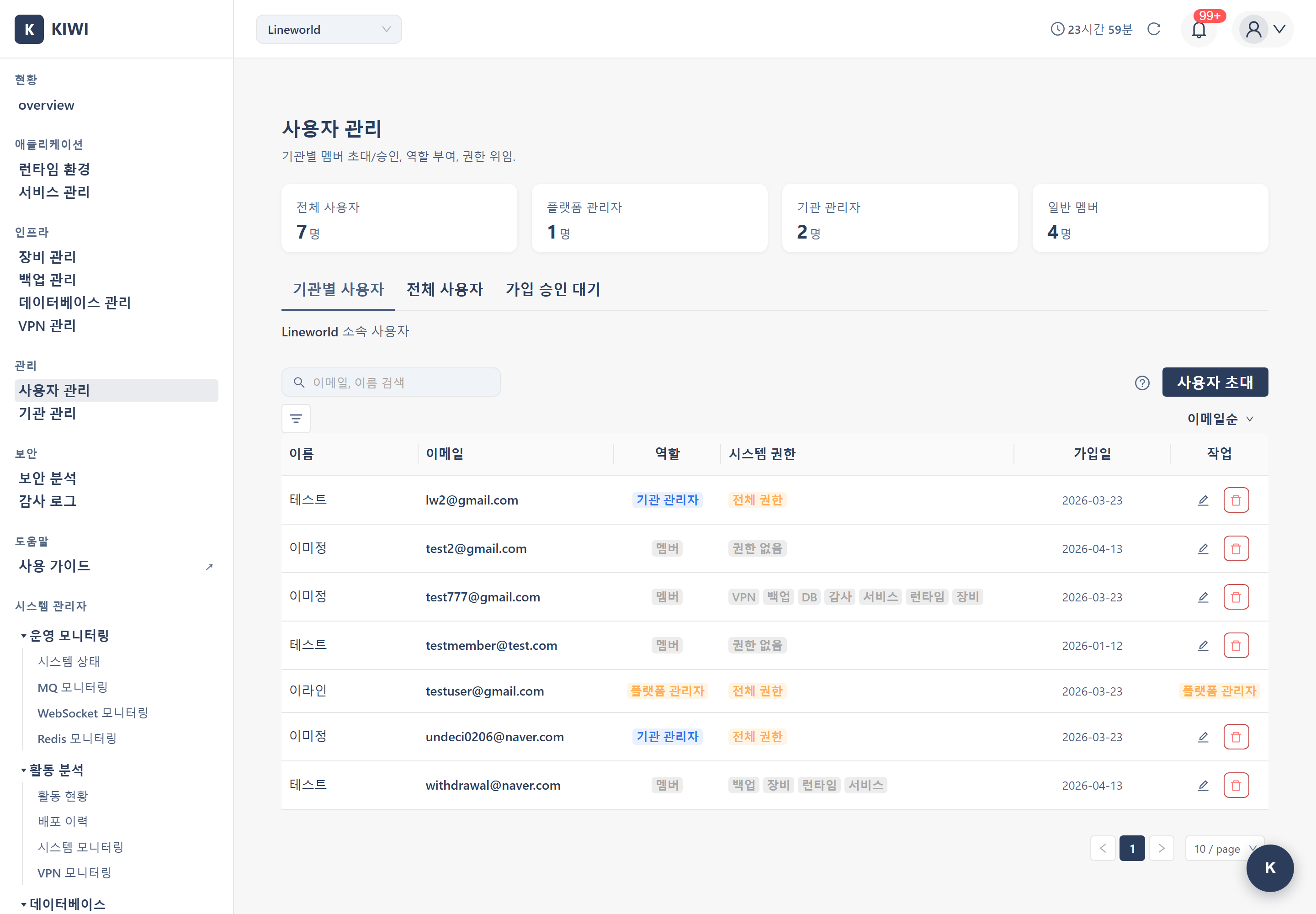
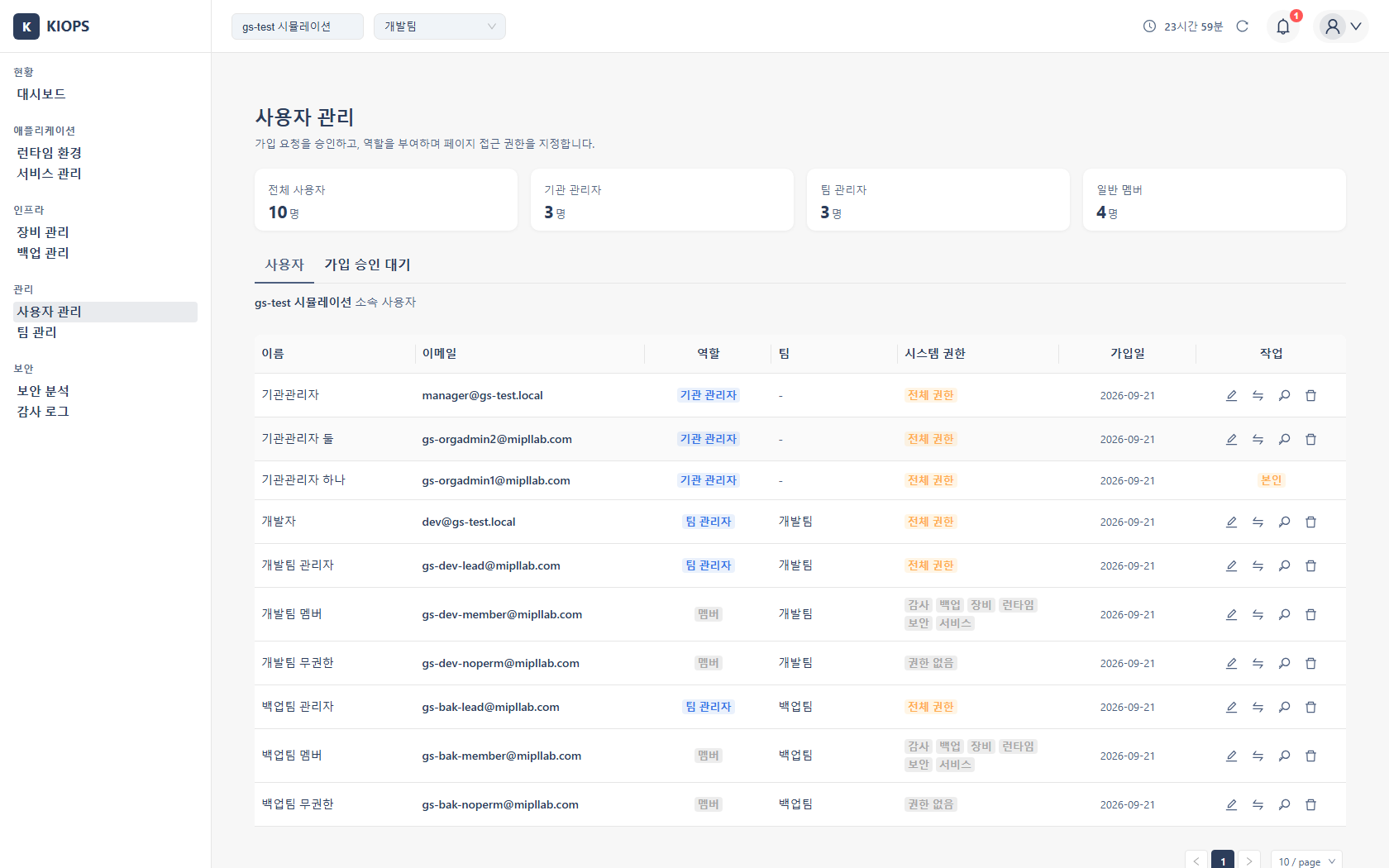
A page for managing users within an organization and assigning roles and permissions. Organization managers (Manager), PlatformAdmin, and team managers (TeamManager) can access it, and it has 2 to 3 tabs depending on role. A team manager can only adjust page access permissions, and only for regular members of their own team.
What you can do here
- Organization Users: Members of the organization the current user belongs to (Manager and PlatformAdmin).
- Pending Approval (N): Users who requested to join but are not yet approved. The number in parentheses is the pending count.
- All Users (PlatformAdmin only): The full platform user list. Not shown to regular Managers.
Key elements
Three organization roles (roles named Viewer/Developer/Operator/Admin do not exist):
- PlatformAdmin: Manages the entire platform. The only role with access to all organizations, the All Users tab, and system administrator screens. On-premises, both promotion and revocation are blocked so exactly one account holds it.
- Manager (Organization Admin): Within their organization can remove users, approve signups, appoint team managers, grant permissions, and change organization settings. However, promoting a Member to Manager or assigning PlatformAdmin is not allowed (PlatformAdmin only), and they cannot change their own role.
- Member: Uses features within the page access permissions granted to them.
Team roles are a separate axis. A TeamManager has access to all eight pages within their own team and can adjust page permissions for regular members of that team from this screen. See User & Permission Management for how the two axes relate.
Multi-organization membership: A single user can belong to multiple organizations and have a different role in each (SaaS only - on-premises has a single organization). Team membership is singular: a user belongs to exactly one team.
Organization Users list: Name · Email · Role · Team · System Permissions (service/infra/backup/device/database/security/vpn/audit — 8 badges) · Join Date · Actions. The Team column and team filter let you narrow by team. The Active/Inactive status column is not on this tab but on the Pending Approval tab; for the meaning of membership status values see the Status Reference.
Search, sort, filter: Partial email/name search; sort by email, role, or join date; filter by role, status, or team.
How to
Approving a join request
- On the Pending Approval (N) tab, review the requester's email, name, and request time.
- Approve adds the user to the organization as a Member. Reject declines it, and the user can request again later.
- After approval, assign the user to a team in [Team Management] and grant the page permissions they need here. Without a team assignment, lists appear empty even with permissions.
Changing a user's role
- Click the Edit Role/Permissions (pencil) button on the target row.
- Select the new role and Save. Only a PlatformAdmin can grant the Manager role or assign PlatformAdmin, and on-premises the PlatformAdmin option itself is locked. Selecting organization admin or team manager replaces the page permission checkboxes with an informational banner.
- Pages not included in your current license do not appear in the list at all (they are removed, not locked).
- You cannot change your own role. Users whose role or team changed must sign in again.
Removing a member
- Click Remove on the target row → confirm. The removed user loses all access to this organization but memberships in other organizations are unaffected.
- The last remaining Manager cannot be removed (at least 1 Manager required per organization). States where a user would remain in a team but not in the organization are also blocked.
Reset a password
When a member forgets their password, an organization manager issues a temporary one.
- On the target row, use Reset password in the [Actions] column → confirmation dialog → copy the temporary password from the result dialog.
- The temporary password is shown only once. Once the dialog is closed it cannot be retrieved, so copy it first and deliver it to the person over a secure channel.
- The account is then forced to change its password at the next login. Until it does, only the password change in [My Info] is usable, and after changing it the user signs in again with the new password.
- Resetting terminates that user's existing sessions. In any window they left open, the next action or refresh shows "Your session has expired. Please sign in again."
- The button is not shown to team managers or to the platform administrator on on-premises deployments.