Audit Log
This guide explains how to view and analyze system audit logs in KIOPS.
Why Do You Need Audit Logs?
Audit logs are records of activity in the system. They are essential for security audits, troubleshooting, and regulatory compliance. What you can see depends on your role — an organization manager sees the whole organization, a team manager sees their own team plus themselves, and a member sees only their own records (the screen states this too).
- Security breach: Without audit logs, it's unknown who did what. With audit logs, you can identify intrusion path and impact.
- Troubleshooting: Without audit logs, you rely on guesswork. With audit logs, you can track exact change history.
- Regulatory audit: Without audit logs, there's no evidence. With audit logs, you can pass audits with complete activity records.
- Detecting misuse: Without audit logs, you cannot detect issues. With audit logs, you can detect abnormal activity patterns.
Many security regulations (ISO 27001, SOC 2, GDPR, etc.) require maintaining audit logs, so a proper log retention policy is key to compliance.
Audit Log Categories
KIOPS classifies platform-wide activity into 16 categories:
| Category | Code | What is recorded |
|---|---|---|
| Device | device | Device register / update / delete |
| Infra | infra | Runtime environment registration, configuration changes |
| Service | service | Build, deploy, rollback, service configuration changes |
| Auth | auth | Login / logout, password change, auth success / failure |
| Backup | backup | Backup creation, restore execution |
| Database | database | DB connection register / update, sync jobs |
| User | user | Role change, account change |
| Organization | organization | Organization settings, membership handling |
| Audit | audit | Audit-log related actions (settings change, etc.) |
| VPN | vpn | VPN profile register / update / delete, connection history |
| Secret | secret | Secret / token register / update / delete |
| Domain | domain | Domain register / update / delete |
| Monitoring | monitoring | Monitoring extension install / configuration change |
| System | system | System settings change, maintenance actions |
| Webhook | webhook | Webhook register / receive / event handling |
| DB Backup | db_backup | Database backup / restore operations |
Practical tip — When starting a security audit, first inspect the auth category for abnormal login attempts, then review the service, infra, and backup categories for key change history.
Viewing Audit Logs
How to review the activity records generated in the system.
Permission Notice: If you cannot access this feature, please request permission from your organization manager.
Step 1: Navigate to the Audit Log Page
Click [Audit Log] in the left menu.
Step 2: Review the Default Log List
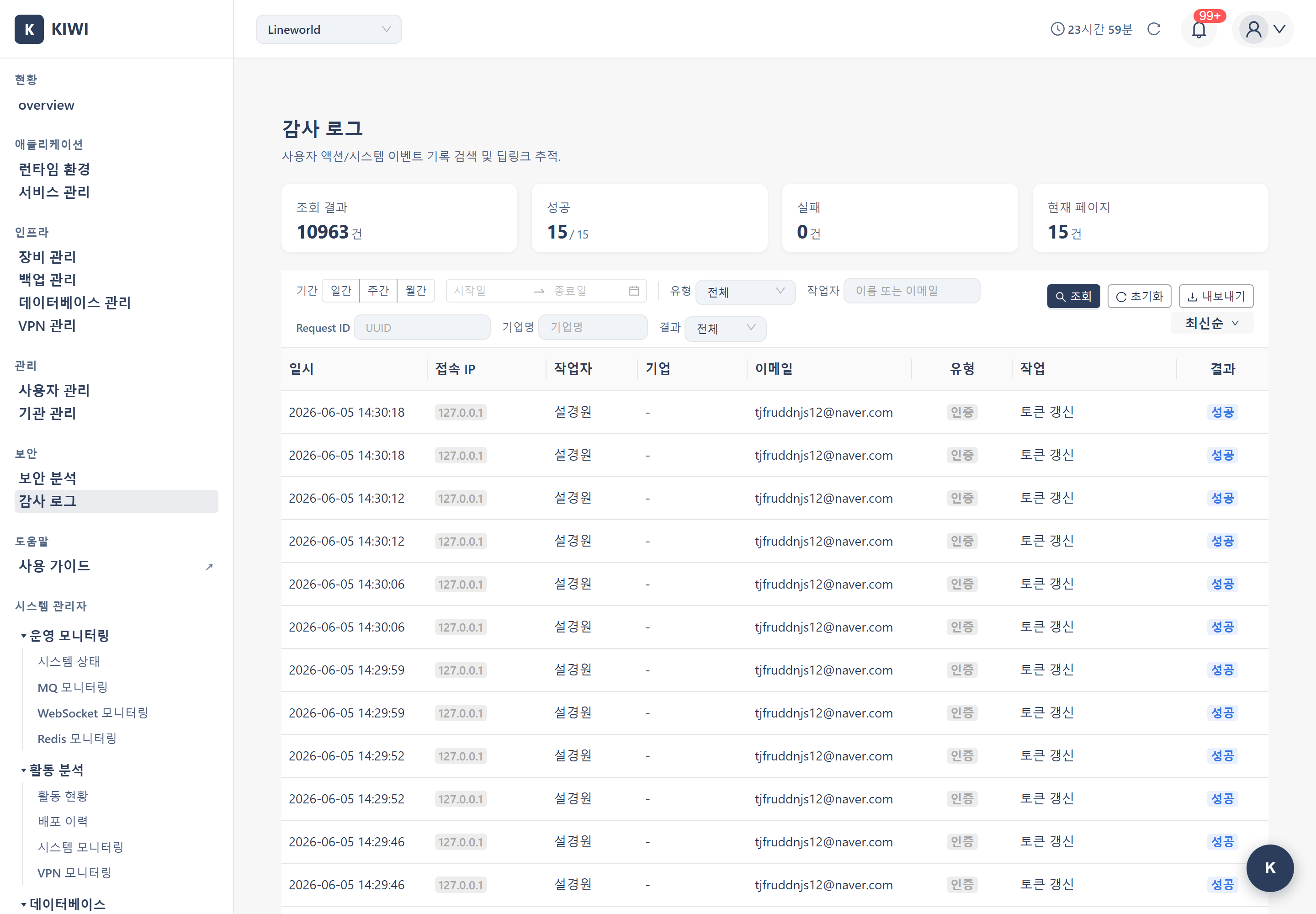
Review the list of recent logs in the audit log table. Each log displays the following information:
- Time: When the event occurred.
- Actor: The user who performed the action.
- Type: Category (one of 16 codes such as
auth,service,infra,backup, etc.). - Action: The operation performed (e.g.
create,update,delete). - Target: The target resource of the action.
- Result:
done(success) /failed(failure) /pending(waiting) /processing(in progress).
Step 3: View Log Details
Click a log entry to view detailed information:
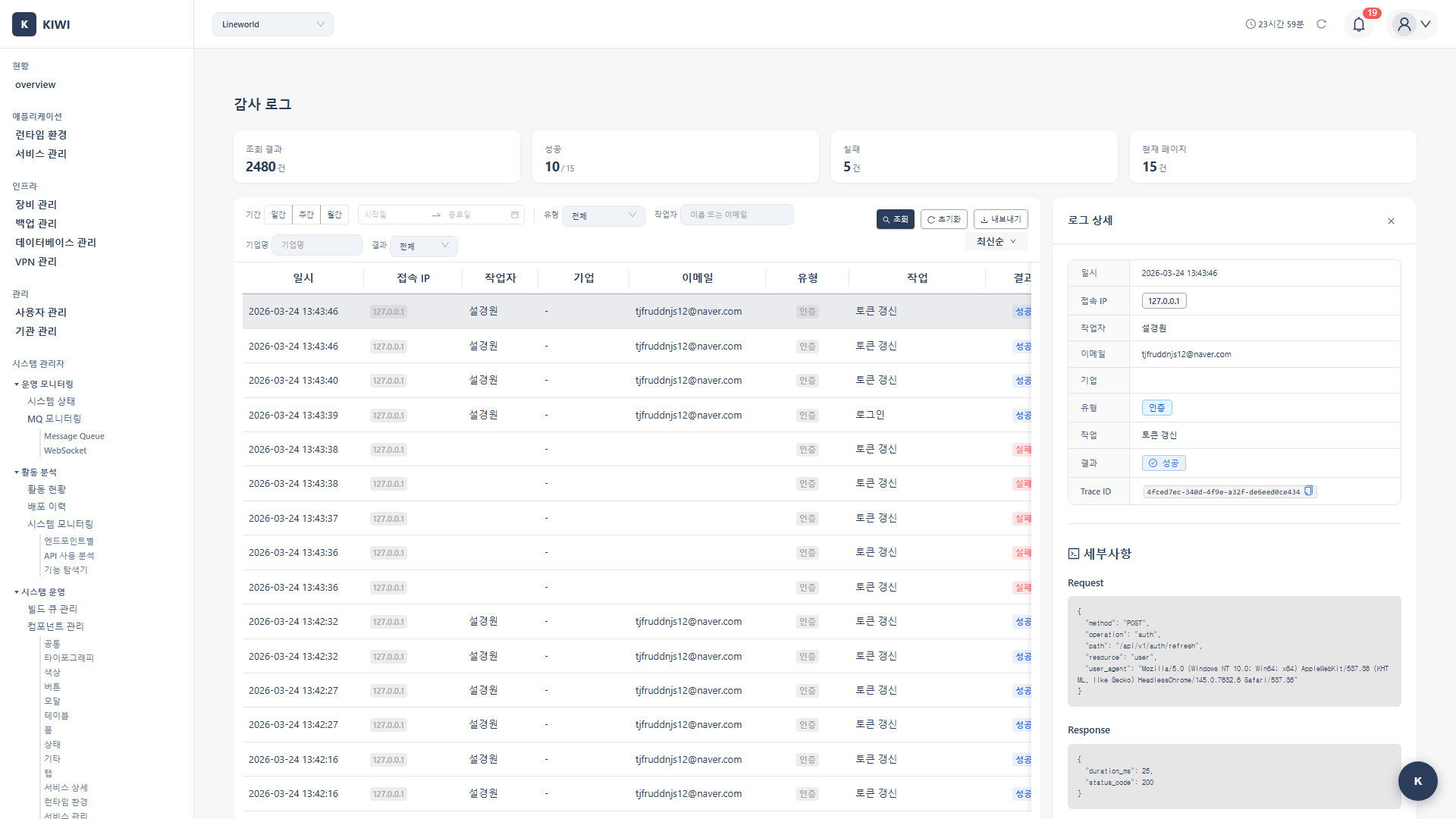
- Request IP address
- Request details (parameters)
- Before / after data comparison
- Error message on failure
- Trace identifiers such as
request_id
Filtering Logs
How to view only logs matching specific conditions.
Step 1: Use the Filter Area
In the filter area at the top of the page, enter conditions such as period (Daily / Weekly / Monthly), date range, type, actor, Request ID, and result, then click the Search button. (The filter fields are always visible; there is no separate "Filter" button or expandable panel.) Members only ever see their own records, so the actor field is not shown for them, and the type list contains only the types present in their own records.
Step 2: Set Period Filter
Select the time range to query:
- Daily: Display only logs from today.
- Weekly: Display logs from the past 7 days.
- Monthly: Display logs from the past month.
- (Date range picker): Enter the start and end dates directly.
Step 3: Set Type Filter
Select the event category. KIOPS supports 16 categories, and you can select several at once. They are device, infra, service, auth, backup, database, user, organization, audit, vpn, secret, domain, monitoring, system, webhook, and db_backup.
Step 4: Set User Filter
To view only a specific user's activity, select that user.
Step 5: Set Result Filter
Select the result status. The result values are done (success) / failed (failure) / pending (waiting) / processing (in progress), and asynchronous operations progress through pending -> processing -> done/failed.
- All: Display all results.
- Success: Display only successful (
done) actions. - Failure: Display only failed (
failed) actions. - Depending on the operation type, logs in the pending / processing states may also exist.
Step 6: Apply Filter
Click the Search button. Only logs matching the filter conditions will be displayed.
Searching Logs
How to search logs by specific keywords.
Step 1: Use the Filter Fields
The audit log does not provide a single unified search box; instead it offers separate filters per field:
- Actor: Search by username or email (input is debounced, refreshes automatically).
- Request ID: Partial-match search on the trace identifier (UUID) (auto-injected from Discord error notification deep links, debounced).
- Period (Daily / Weekly / Monthly and date range), Type, and Result dropdown filters.
- Organization name filter (platform administrators only).
Free-text search over resource name, IP address, or action description is not supported.
Step 2: Use the Search Results
Clicking an entry in the list opens its detail view. When you enter the audit log via a deep link from another screen (notification, service detail, etc.), the corresponding entry is automatically selected and scrolled into view.
Exporting Logs
How to export audit logs to a file.
Step 1: Open the Export Modal
Click the Export button. Export always targets the entire current filter (search) result, and the modal header shows the target count as "Downloading a total of N records from the current search." There is no option to export only checkbox-selected items or to export all logs regardless of the filter, so narrow the export scope first using filters/search.
Step 2: Select Export Format
Audit log export currently supports only two formats:
- xlsx (default): Open directly in a spreadsheet for analysis.
- CSV: Suitable for downstream tooling or bulk processing.
Step 3: Execute Export
Click the Export button. The file will be downloaded.
Security Event Monitoring
How to monitor suspicious activity.
Step 1: Apply Security Event Filter
Filter by the following conditions:
- Type: Authentication
- Result: Failure
Step 2: Check Login Failure Patterns
Pay attention to the following patterns:
- Multiple failures from the same IP: Possible brute force attack.
- Multiple failures on the same account: Possible account takeover attempt.
- Access at abnormal times: Possible unauthorized access.
Step 3: Review Permission Change History
Change the type filter to "Permission" to check for any abnormal permission changes.
The audit log page itself does not provide threshold-based automatic alerting. For real-time rule-based alerts such as "N login failures within 5 minutes", we recommend forwarding the audit log to an external SIEM / log analysis tool.
Log Retention Policy
KIOPS does not delete audit logs automatically. The retention scheduler that removed aged records daily has been removed, so entries remain until they are deleted deliberately. There is no per-category retention behaviour either.
Depending on applicable laws (such as personal information protection or telecommunications acts), certain logs must be retained for legally mandated periods, so work with your organization's security or legal team on a separate archival and disposal policy. Use export when you need long-term retention or need to hand records to someone outside.
Frequently Asked Questions
I only want to see activity from a specific user
You can use one of the following methods:
- User filter: Specify the desired user in the "Actor" input of the filter area.
- Search: Enter the username or email in the "Actor" input on the [Audit Log] page. (There is no
user:prefix syntax; the value you enter is matched against name or email.) - Sort results: Use the sort dropdown at the top right to sort by time (Newest / Oldest). (Sorting by clicking column headers, such as Actor, is not supported.)
There are too many logs to find what I need
Narrow it down in this order.
- Narrow the period to when the issue occurred.
- Select type so that only relevant event types remain.
- Result filter to view only failed actions.
Advanced search syntax (key:value combinations such as action:, resource:, user:) is not supported. Instead, enter an email in the "Actor" field, pick the relevant category in "Type", and select a status in "Result" to combine the filters.
Old logs are not visible
KIOPS does not delete them automatically, so widen the period filter first. Also check whether the records fall outside the scope your role can see — a member sees only their own records.
Log export is not working
Causes and solutions:
- Insufficient permissions: Check that you have the
auditpermission. - Data size too large: Export in smaller time intervals.
- Browser issue: Try a different browser or disable popup blocking.
Related Guides
- User/Permission Management - User permission settings.
- Dashboard Usage - System status monitoring.